You can make an html report easily, even if you do not know hard coding. When you learn the basics, you can change how your report looks and works. Changing your html report gives you many good things. For example, you can make your reports fun, interactive, and simple to read.
Benefit Description
Impact on Reports
Makes user experience better with special formatting and design
Makes dashboards look nice and fun, so people like using them more.
Adds interactive things like hyperlinks and multimedia
Turns reports into fun experiences, helping people make choices by giving extra information.
Puts in outside content like videos and social media feeds
Makes stories better, fits different people’s likes, and helps more people pay attention.
Lets reports show new content from real-time data
Makes reports answer faster, giving people the right facts right away.
Helps people use and understand reports with clear formatting
Makes it easier to focus and learn, so people can get ideas quickly.
You do not need to worry about hard steps. Tools like FineReport can help you make reports faster and make them look better.
Sublime Text is quick and has auto-complete to help you.
Visual Studio Code has many add-ons and a built-in terminal.
Pick any editor you like. Each one helps you write code and find mistakes before they get big.
Editor Configuration Tips
Set up your editor to help you work better. Turn on syntax highlighting to see code in color. Use auto-save if your editor has it. This saves your work often, so you do not lose anything. You can add plugins for HTML. These help you write code faster and spot errors.
Organize Project Files
Folder Structure
A clear folder setup keeps your project tidy. Put files in folders by type. For example, put pictures in an "images" folder. Put styles in a "css" folder. This helps you find things fast and keeps you from getting mixed up.
Naming Conventions
Use simple names for your files and folders. Pick lowercase letters and dashes, not spaces. For example, call your main file "index.html". Name your style file "main-style.css". This makes it easy for you and others to know what each file does.
Tip: If you split your CSS into small files, it is easier to change styles later.
Best Practice
Description
Use external stylesheets
Makes styles easy to use again and keeps HTML neat.
Organize CSS
Split CSS into small files for shared styles.
Use CSS preprocessors
Lets you use things like variables and nesting in CSS.
Stick to class selectors
Class selectors are easy to use and change.
Avoid overusing !important
Keeps styles simple and makes fixing problems easier.
HTML Basics Overview
Essential Tags
You need to know some tags to make a good report. Here are the main ones:
<!DOCTYPE html> tells the browser what kind of file it is.
<html> is the main tag for your page.
<head> has info about your page, like the title.
<body> holds everything people see.
Heading tags (<h1> to <h6>) show titles and subtitles.
Paragraph tags like <p>, and tags like <strong> and <em>, help with text.
Lists use <ul>, <ol>, and <li>.
Links use <a>.
Images use <img>.
Tags like <header>, <footer>, <article>, and <section> help organize your page.
Avoiding Syntax Errors
You can stop many mistakes by following some easy rules:
Always match your opening and closing tags.
Use the right format for self-closing tags, like <img src="image.jpg" />.
Start your file with the Doctype line.
Put tags like <title> and <meta> inside <head>.
Use quotes for all attribute values.
Close all tags that need to be closed, like <strong> and <div>.
If you check your code often, you will find mistakes early and keep your report working.
Build HTML Report Structure
When you want to build html report, you need a strong foundation. This foundation starts with a good structure. You will learn how to set up the basic parts, add important information, and make your code easy to read and use.
Write HTML Boilerplate
Doctype and HTML Tags
Start every html report with a boilerplate. This is a template that gives your page the right structure. Follow these steps to create a complete boilerplate:
Choose the right boilerplate for your project. Think about what you need and how big your report will be.
Download or copy a basic html boilerplate. You can find many online or use the example below.
Look at the folder and file structure. Know where your files go.
Change the title and meta tags to match your report.
Remove anything you do not need, like extra scripts or styles.
Add your own styles or frameworks if you want.
Save your work and use version control if you work with a team.
Tip: Always start with <!DOCTYPE html> at the top. This tells the browser to use the latest html rules.
Head and Body Sections
The <head> section holds information about your html report. This includes the title, character set, and other settings. The <body> section holds everything people see, like text, tables, and images.
Put all your styles and links to CSS in the <head>.
Place your main content inside the <body>.
Add Metadata and Title
Setting the Report Title
A good title helps people and search engines know what your html report is about. Write a clear and short title inside the <title> tag. For example:
<title>2026 Sales Performance Report</title>
A strong title makes your report easy to find and understand.
Character Encoding
Set the character encoding to UTF-8. This helps your report show all letters and symbols the right way. Add this line inside the <head>:
<meta charset="UTF-8">
Note: Using UTF-8 stops problems with special characters and keeps your report readable for everyone.
Metadata and a clear title help search engines and users. They show what your page is about and make it easier for people to pick your report from search results.
Structure for Readability
Indentation and Comments
Keep your code neat and easy to read. Use spaces or tabs to line up your code. Add comments to explain parts of your html report. This helps you and others understand your work later.
Always close your tags.
Use the same style for tags and attributes.
Write comments like this:
<!-- This section shows the sales table -->
Consistent formatting and comments make your html report easier to fix and update.
Accessibility Tips
Make your html report usable for everyone. Follow these tips:
Use headings (<h1>, <h2>, etc.) in order. This helps people using screen readers.
Add alt text to images so everyone knows what they show.
Use semantic tags like <header>, <main>, and <footer>.
Make sure all buttons and links work with a keyboard.
Do not use color alone to show meaning.
Write in plain language.
Let users change settings, like dark mode, if possible.
Accessibility Tip
Why It Matters
Use semantic HTML
Helps assistive tools understand your content
Add alt text to images
Describes images for those who cannot see them
Keep navigation consistent
Makes it easier to move through your report
Use high-contrast colors
Improves visibility for everyone
Following these steps means your html report will be clear, easy to use, and helpful for all readers.
Add Content Elements in HTML Report
Insert Headers and Sections
Using h1-h6 Tags
You can organize your html report with headings. Headings help readers know what each part is about. Use only one highest-level heading for each section. For example, use <h1> for the main title, then <h2> for big sections, and <h3> for smaller parts. This keeps your report clear and easy to follow.
Start each section with a heading.
Make sure the heading is the first thing in the section.
Use <h1> to <h6> tags in order, without skipping levels.
Label sections with headings or use attributes like aria-label for accessibility.
Headings help everyone, including people using screen readers, understand your content.
Organizing Content
You should break your html report into sections. Use headings to show where each new topic starts. Add labels to sections if you want to help users find information faster. This makes your report easier to read and more helpful for everyone.
Create Tables for Data
Table Elements
Tables show data in rows and columns. You can use different HTML elements to build tables. Here are the main ones:
Element
Description
<th>
Defines a header cell in a table
<tr>
Defines a row in a table
<td>
Defines a cell in a table
<thead>
Groups the header content in a table
<tbody>
Groups the body content in a table
<tfoot>
Groups the footer content in a table
<col>
Sets column properties within a <colgroup>
<colgroup>
Groups one or more columns for formatting
You can use these elements to make your data clear and organized.
Styling Rows and Columns
You can add style to your tables to make them easier to read. Use CSS to change the background color of rows or columns. Add borders to separate cells. You can also use classes to highlight important data. For example, you might use a different color for totals or key numbers.
Tip: Good table design helps people find the numbers they need quickly.
Write Summaries and Lists
Paragraphs and Bullet Points
Most reports use headings and paragraphs to share information. Write short paragraphs to explain your data. Use bullet points for lists when the order does not matter. Use numbered lists for steps or sequences. This makes your html report easy to scan and understand.
Bullet points show main ideas.
Numbered lists show steps.
Description lists explain terms.
Highlighting Key Data
You can highlight important facts by using bold text or different colors. Place key numbers at the start of a line or in a special cell in your table. Use short sentences to point out trends or results. This helps readers focus on what matters most.
Clear summaries and lists make your html report more useful and enjoyable to read.
Customize Your HTML Report
You can make your html report unique by adding styles and features. When you use CSS, you decide how your report looks. You can make quick changes or use organized styles. It depends on what you need.
Add CSS Styling
Inline Styles
Inline styles let you put CSS right in an element. You use the style attribute inside HTML tags. This is good for small changes or styling one part.
<p style="color: blue; font-weight: bold;">This is a highlighted summary.</p>
Inline styles show changes right away. You do not need another file. But using lots of inline styles can make your HTML messy and hard to fix.
External Stylesheets
External stylesheets keep CSS in a different file. You link this file to your HTML with the <link> tag in the <head>.
<link rel="stylesheet" href="styles.css">
This keeps your HTML neat. You can use the same styles on many pages. For big html reports, external stylesheets make updates easier.
Here is a table to compare both ways:
Type of CSS
Advantages
Disadvantages
External CSS
Cleaner structure, reusable, smaller HTML files
May delay rendering until CSS loads
Inline CSS
Quick for single elements, no extra file needed
Messy HTML, hard to manage for many elements
Tip: Use external stylesheets for most projects. Use inline styles for quick fixes or tests.
Enhance Visuals
Classes and IDs
Classes and IDs help you style certain elements with CSS. Add a class or id to your HTML tags. Classes are for groups. IDs are for one special element.
Responsive design makes your html report look good everywhere. You use CSS like width, max-width, and media queries to change layouts. Your report works on phones, tablets, and computers.
Some important CSS properties for visual appeal are:
Property
Description
Example
box-shadow
Adds shadow to elements
box-shadow: 0 4px 8px rgba(0,0,0,0.15);
border-radius
Rounds corners
border-radius: 8px;
background
Sets background color/image
background: #f0f0f0;
opacity
Sets transparency
opacity: 0.9;
transition
Animates changes
transition: all 0.3s ease;
margin
Outer spacing
margin: 1rem 0;
padding
Inner spacing
padding: 1.5rem;
width
Sets width
width: 50%;
max-width
Limits width
max-width: 1140px;
Try these properties to make your report look better and easier to read.
FineReport for HTML Report Customization
Drag-and-Drop Design
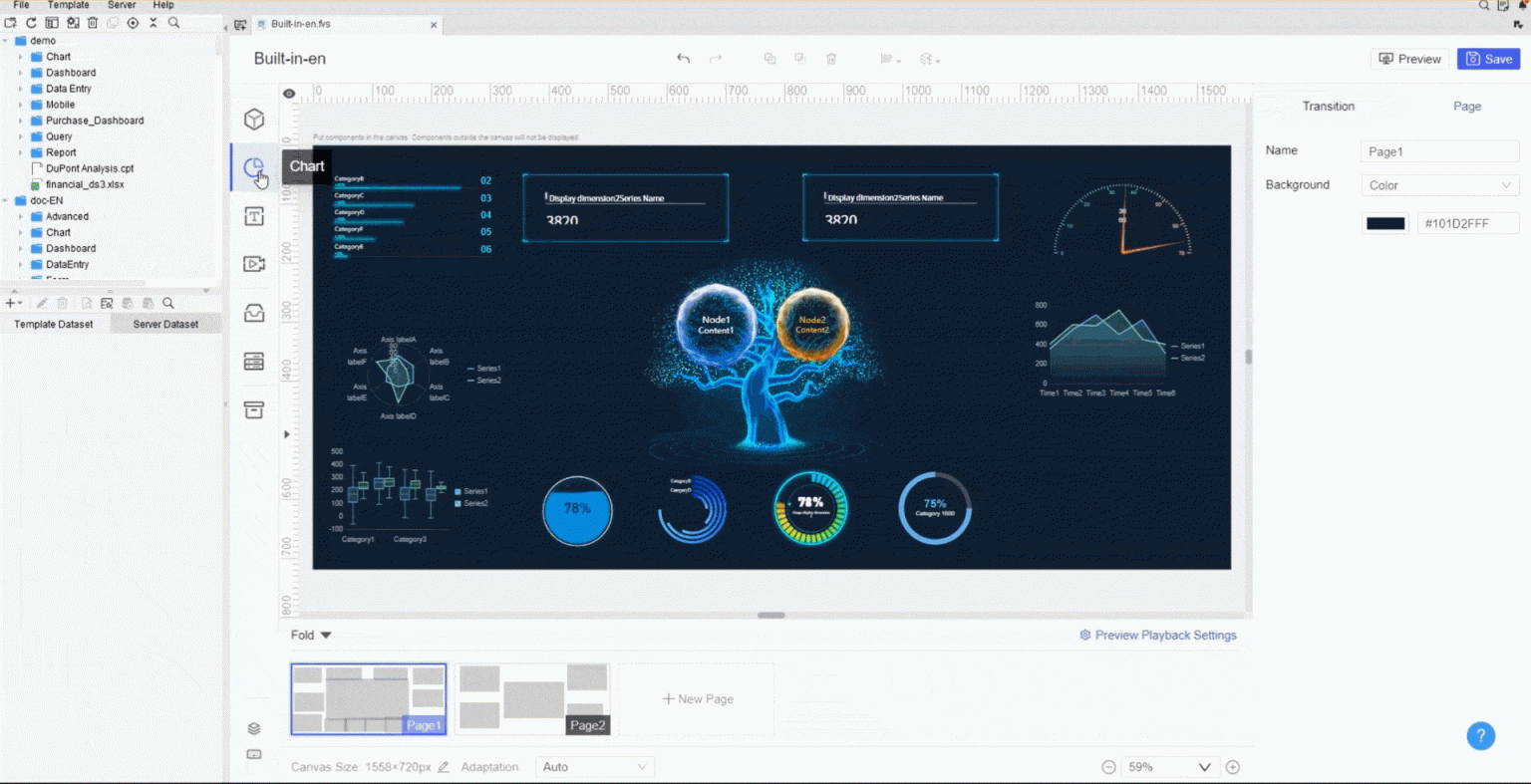
FineReport lets you customize your html report easily. You do not need to code. You can drag and drop tables, charts, and images. This saves time and lets you focus on your data.
Advanced Formatting Options
FineReport gives you advanced formatting tools. You can set colors, fonts, and layouts with clicks. FineReport supports responsive design, so your reports look good everywhere. You can connect to different data sources and update your report fast.
FineReport helps you make professional reports quickly. You get flexibility and power, even if you do not know much about html or CSS.
You need to save your HTML report with a clear name. Choose a name that tells you what the file is about. Use lowercase letters and dashes instead of spaces. For example, you can name your file index.html or sales-report-2026.htm. Both .html and .htm extensions work well. Good file names help you find your reports quickly and keep your projects organized.
Encoding Settings
Set the encoding to UTF-8 when you save your file. This setting makes sure your report shows all letters and symbols correctly. Most text editors let you pick the encoding before you save. If you use Notepad on a PC or TextEdit on a Mac, look for the encoding option and choose UTF-8. This step helps your report work on all browsers and devices.
Tip: Always double-check your encoding. Using UTF-8 prevents problems with special characters.
Open in Browser
Browser Compatibility
You can view your HTML report in any web browser. Open your file in Chrome, Firefox, Edge, or Safari. Each browser may show your report a little differently. Test your report in more than one browser to make sure it looks right everywhere. This helps you spot any layout or style changes.
Debugging Display Issues
Sometimes, your report may not look as you expect. Common problems include:
Syntax errors, like missing tags or typos.
Cross-browser compatibility issues, where the report looks different in each browser.
Rendering issues, such as broken layouts or misplaced images.
Slow page load speed from HTML mistakes.
Broken links or misaligned elements that hurt user experience.
You can use browser tools to find and fix these problems. HTML validators also help you catch errors early. Fixing these issues makes your report easier to read and more enjoyable for everyone.
Share and Export
Email and Cloud Sharing
You have many ways to share your HTML report. You can send the file by email or upload it to a cloud service like Google Drive or OneDrive. Make sure you only share the pages you want others to see. Some tools let you set up email subscriptions, so reports go out automatically to your team. You can also publish your report on the web for easy access.
Export as PDF
You may want to export your HTML report as a PDF. This format is easy to print and share. Many browsers let you save a web page as a PDF. Some reporting tools let you export reports as PDF, Word, or even image files. You can also export only the pages you have permission to view. This keeps your data safe and private.
Note: Exporting your report in different formats helps you reach more people and makes your work more flexible.
Troubleshoot and Optimize HTML Report
When you finish your report, you may find mistakes or things that do not look right. You can fix these problems with the right tools and steps. Here is how you can make your report work better for everyone.
Fix Syntax Errors
HTML Validators
You can use special tools to check your code for mistakes. These tools show you where you have errors and help you fix them fast.
CSS Validator and Markup Validation Service by W3C check your code for errors and warnings.
Online platforms like CodePen, JSFiddle, and Repl.it show mistakes as you type.
Browser extensions such as 'HTML Validator' for Firefox and 'Validity' for Chrome check your code inside the browser.
Command-line tools like htmlhint and tidy help you check big projects.
Text editors like Sublime Text, Atom, and Visual Studio Code have plugins that find errors as you write.
Nu HTML Checker gives you a deep look at your code and helps you follow best practices.
Accessibility tools like Axe Accessibility Checker show you problems that can affect users with disabilities.
Browser Dev Tools
You can use browser developer tools to find and fix errors. Open your report in a browser and press F12. You will see a panel with tabs like "Elements" and "Console." These tools let you:
See your code as the browser reads it.
Find missing tags or broken links.
Test changes without editing your main file.
Check for warnings or errors in the console.
Tip: Use these tools often to catch small mistakes before they become big problems.
Resolve Display Issues
CSS and Table Problems
Sometimes, your report does not look right. You may see tables that do not line up or colors that do not show. You can use these methods to fix display issues:
Use tools to make fixing problems faster and easier.
You should also check your HTML tags. Use the right tags like <div> and <section> to keep your layout neat. Pick the correct display type, such as block, inline, or flex, to arrange your elements.
Image and Media Issues
If images do not show or videos do not play, check the file paths. Make sure you use the right file names and extensions. Test your report in different browsers to see if media works everywhere. Use alt text for images so everyone knows what they show.
Ensure Accessibility
Screen Reader Checks
You want everyone to use your report, including people who use screen readers. Try these tools:
Tool Name
Description
NVDA
A free screen reader for Windows.
TalkBack
A screen reader for Android devices.
VoiceOver
A built-in screen reader for iOS devices.
Test your report with these tools. Listen to how your content sounds. Fix anything that is hard to understand.
Mobile Testing
Many people read reports on phones or tablets. Open your report on different devices. Make sure buttons are big enough to tap. Check that text is easy to read. Use tools like TalkBack or VoiceOver to test accessibility on mobile devices.
Good testing helps everyone use your report, no matter how they access it.
Build HTML Report Efficiently with FineReport
FineReport helps you make reports faster and easier. You do not have to write code for everything. Simple tools let you build, change, and share your reports. FineReport lets you work smarter and save time.
FineReport Features Overview
FineReport has many tools that make building reports simple. The table below shows the main features:
Use company data to make reports for teams and leaders.
Excel-like Design Metaphors
Work in a way that feels like using a spreadsheet.
Drag-and-Drop Visual Designer
Build reports by dragging tables, charts, and images. No coding is needed.
Multiple Data Sources Support
Connect to many databases and files at once.
Parameterization and Filtering
Make reports that change when users pick filters or enter data.
Interactive Charts
Add charts that let people look at data in new ways.
Web Deployment
Share reports online so people can see them anywhere.
Integration with Existing Systems
Connect reports to your business tools for smooth work.
User and Role Management
Decide who can see or change each report.
Mobile Access
Open and use reports on your phone or tablet.
FineReport’s drag-and-drop tool lets you build reports fast. You can focus on your data instead of writing code.
Multi-Source Data Integration
You can bring data from many places into one report. FineReport lets you get information from different databases, Excel files, and more. You do not have to copy and paste data by hand.
You can connect to SQL Server, Oracle, MySQL, Excel, and others. FineReport helps you put all your data together in one report.
Automated Report Generation
FineReport can make reports for you on a schedule. You can set up daily, weekly, or monthly reports. The tool sends reports by email or saves them in a folder. This saves you time and keeps everyone updated.
Set reports to run by themselves.
Send reports to your team by email.
Export reports as PDF, Word, or Excel files.
Update data right away.
With automation, you do not have to remember to send reports. FineReport does it for you.
Real-World Use Case: King Yuan Electronics
Let’s see how a real company used FineReport to work better.
Efficiency Gains
King Yuan Electronics Group is a leader in semiconductor testing. Before FineReport, their team took two weeks to make each report. The old tools were slow and hard to use. After using FineReport, they finished the same reports in just two hours. The drag-and-drop tool made it easy for anyone to build reports. The team could connect to many data sources, not just one. This saved time and cut down on mistakes.
You can see how FineReport helps teams finish work faster and with less stress.
Enhanced Decision-Making
With FineReport, King Yuan Electronics could see all their data in one place. Managers got dashboards that showed key numbers and trends. They could make choices quickly because they had the right information. The reports updated in real time, so everyone saw the latest data. The company worked better and made smarter decisions.
You may wonder when FineReport is the best choice. Here are some times when you should use it.
Large Data Sets
If you have a lot of data, FineReport helps you manage it. The tool uses caching to make reports run faster. You do not need to connect to the database every time. FineReport can handle many indicators and hard calculations. Manual HTML reports may slow down or stop working with big data, but FineReport stays fast.
Lets you get data again without always connecting to the database.
Needs constant database connections.
Handling Large Data Sets
Handles many indicators and hard SQL easily.
May slow down with lots of data.
Update Frequency
Can update every 30 minutes for better speed.
Needs real-time updates, which can be slow.
Enterprise Reporting Needs
FineReport works well for businesses that need advanced reports. You get real-time reporting, machine learning, and self-service options. You can make reports with advanced charts and strong security. Manual HTML reports have basic features and less security.
Consideration
FineReport
Manual HTML Reporting
Real-time reporting
Yes
No
Machine learning integration
Yes
No
Self-service options
Yes
Limited
Data visualization
Advanced options available
Basic visualization
Customization capabilities
High
Low
Data security
Multi-tenant or row-level security
Basic security measures
If your company needs secure, flexible, and powerful reports, FineReport is a smart choice.
You can use FineReport to build an html report that is fast, interactive, and easy to share. You do not need to worry about coding or data limits. FineReport gives you the tools to succeed.
You now know how to create an HTML report from scratch. Start with the basics, build your structure, and add content. Try different layouts and styles. Use tools like FineReport for faster and more advanced reports. Keep learning by exploring tutorials and guides. If you have questions or want to share your experience, leave a comment below. Your feedback helps everyone grow!
Product Trial
FineReport
Pixel-perfect reports · Interactive dashboards · Easy data entry · Digital twins
Access a wealth of case studies, industry insights, and solution guides to accelerate digital transformation.
FAQ
Do I need to know coding to make an HTML report?
No, you do not need to know advanced coding. You can start with simple HTML. Tools like FineReport let you build reports with drag-and-drop features.
How do I add charts or graphs to my HTML report?
You can use chart libraries like Chart.js or Google Charts. FineReport lets you add charts by dragging them into your report. You do not need to write code for this.
Can I use my Excel data in an HTML report?
Yes! You can copy data from Excel and paste it into your HTML table. FineReport also lets you import Excel files directly and turn them into reports.
How do I share my HTML report with others?
You can send the HTML file by email. You can upload it to cloud storage. FineReport lets you publish reports online or export them as PDF or Word files.
Is FineReport only for big companies?
No, you can use FineReport for small projects or large businesses. It works for anyone who needs to create reports, dashboards, or data entry forms.
What devices can I use to view my HTML report?
You can view your HTML report on computers, tablets, and smartphones. FineReport makes reports that look good on all devices.