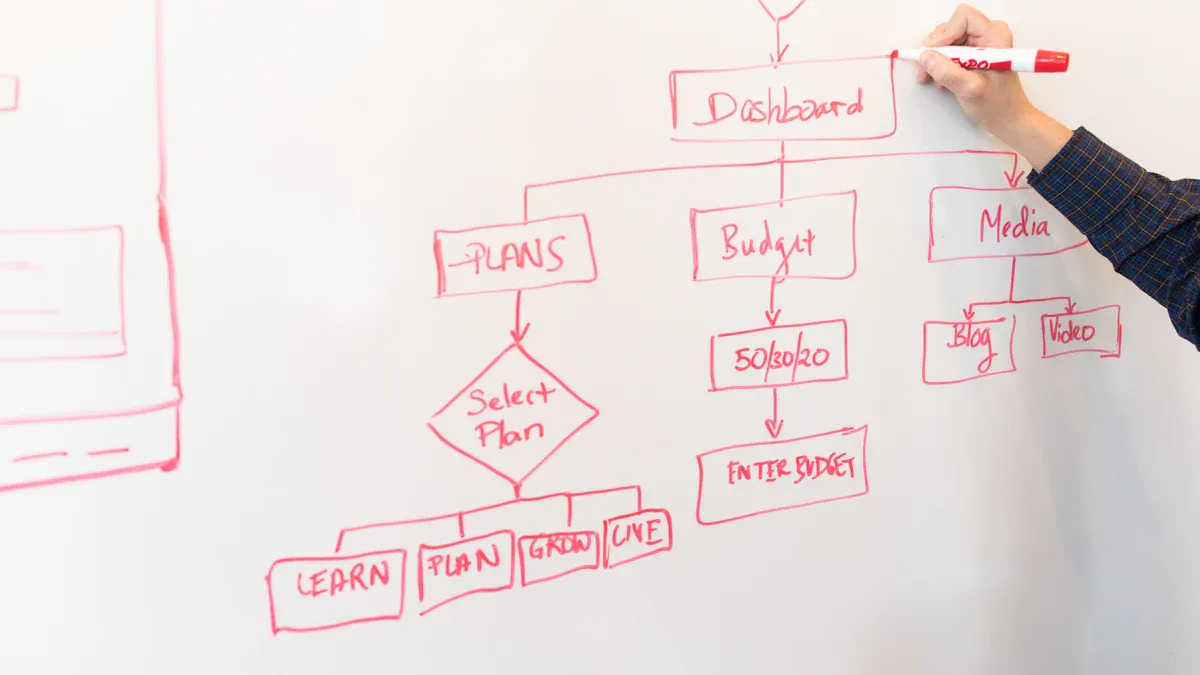
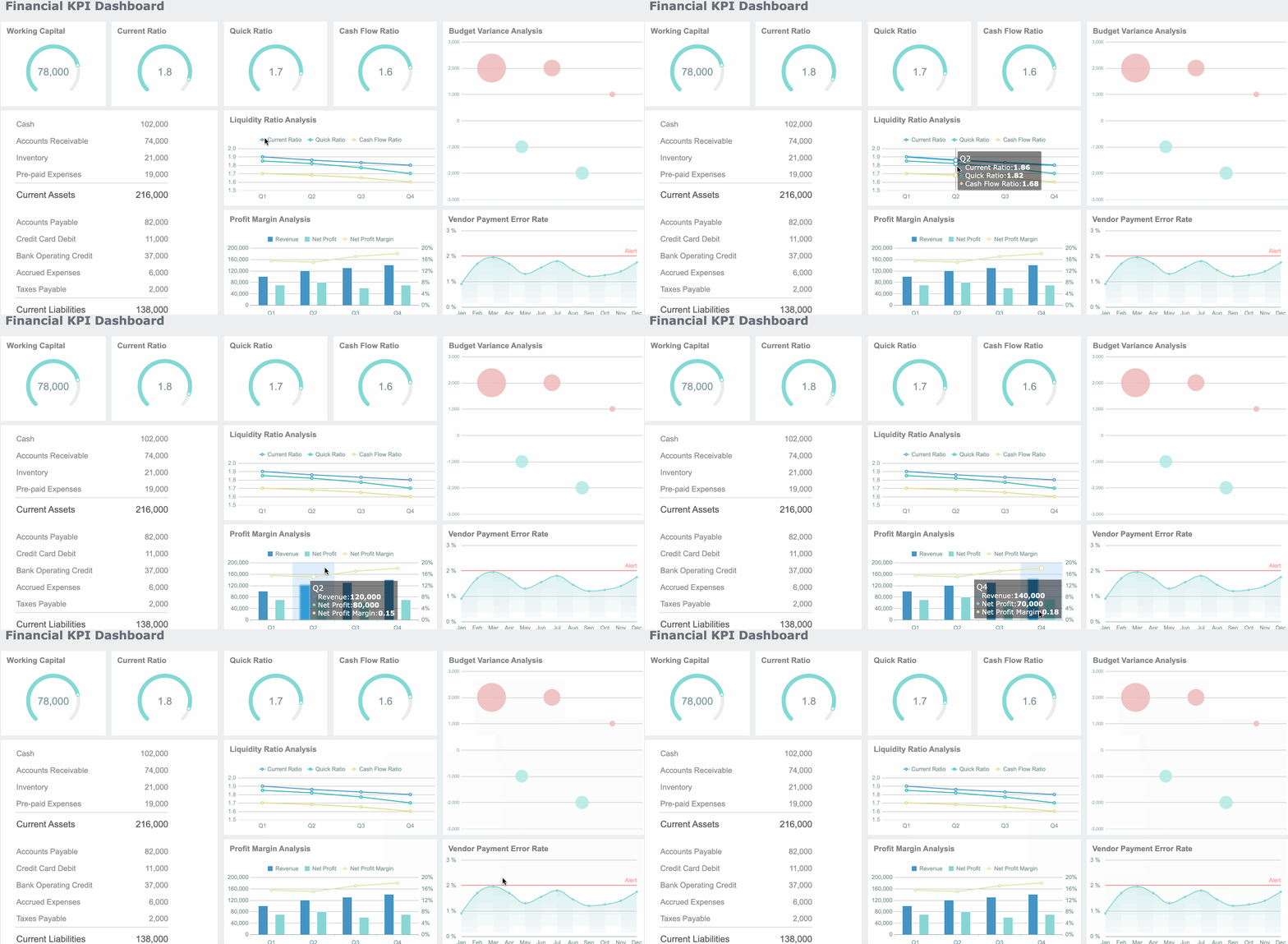
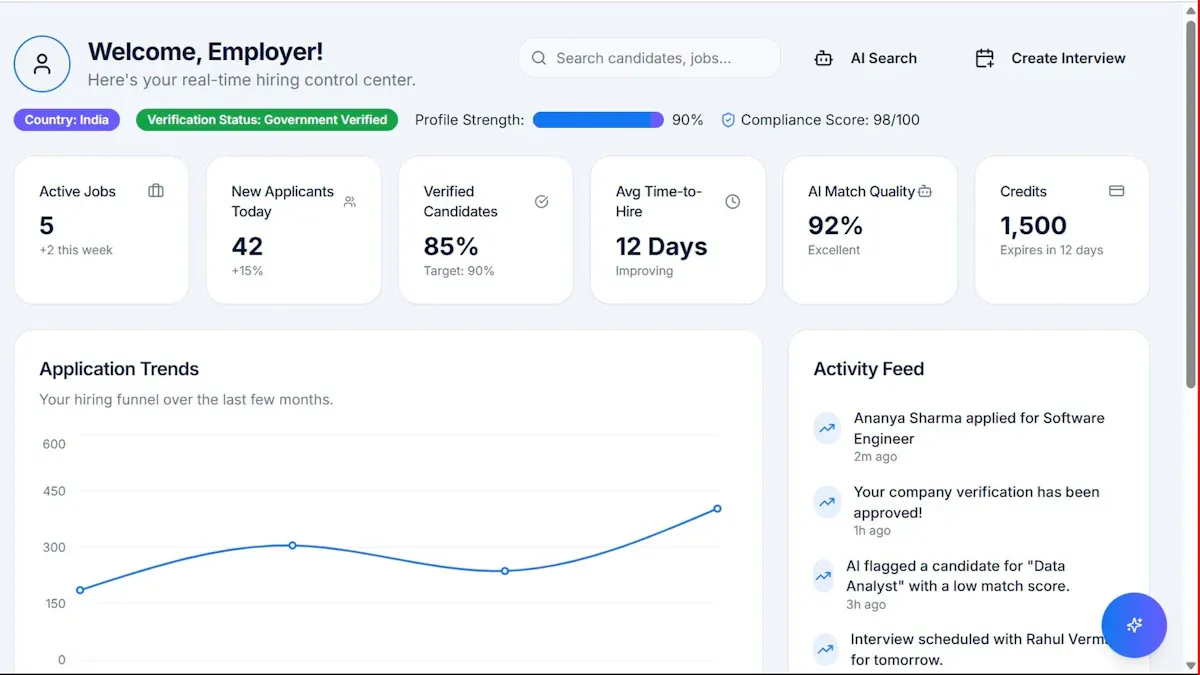
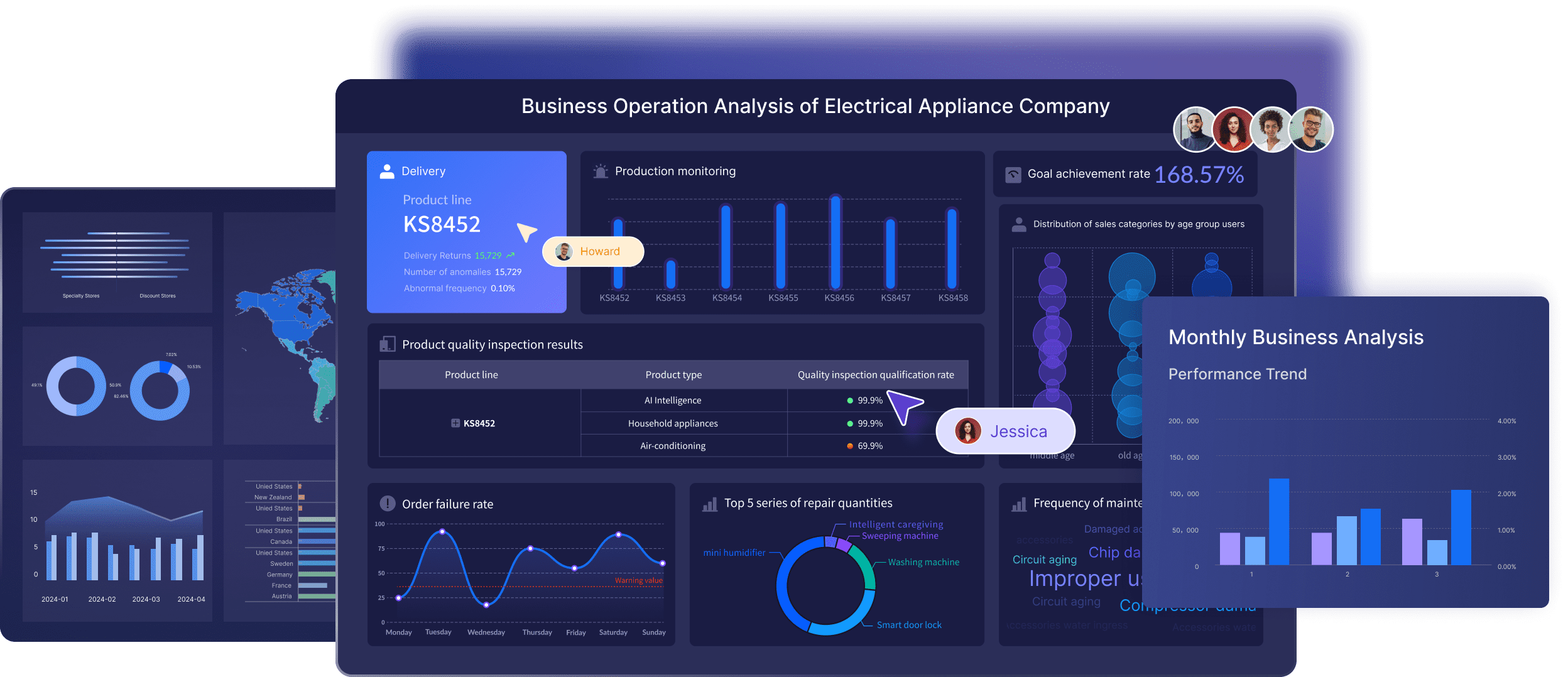
You can make a SharePoint dashboard easily, even if you have never made one before. Dashboards let you see your business data in one place. They help you make better choices. Many companies use dashboards. About 78% put them in their products. Dashboards help teams understand information fast. You can use tools like FineBI to connect your data. This makes your dashboard even stronger.
Understanding SharePoint Dashboards
What Is a SharePoint Dashboard
A sharepoint dashboard is a tool that shows business data in one place. It is the front part of your business intelligence system. This tool makes your data simple to see and use. You can make dashboards with Excel Services, PerformancePoint, or Web Parts. These dashboards help you watch key performance indicators, called KPIs. This way, you can make smart choices using real-time data.
Many companies use different dashboards. Some dashboards focus on KPIs. Others give you a place for daily work. Some dashboards change for each user. Many dashboards have features that help you work faster.
Traditional KPI-focused dashboards
Dynamic and personalized dashboards
Tailored workspaces for daily activities
Enhanced productivity features
SharePoint dashboards are special because they have unique cards and tools. Here are some features you might find:
Feature
Description
Events Card
Shows events from many sites. You can change the size and pick which events to see.
My Sites Card
Lists the sites you follow for a personal touch.
Folder Card
Gives you quick access to files or folders you use often.
Power App Card
Lets you add a Power App right into your dashboard.
People Lookup Card
Helps you find people in your company.
Viva Learning Card
Brings learning content into your dashboard.
Adaptive Card Designer
Lets you make custom cards without needing to code.
Benefits for Teams and Projects
When you use a sharepoint dashboard, your team gets many good things. You can see all your information in one place. This saves time and helps you decide faster. You can make reports that show trends. These reports help you spot problems or wins. Dashboards also help you check how well people are doing. You can see status and find patterns that need help.
Benefit
Description
Improved Decision-Making
You find information fast, so you can decide quickly.
Actionable Reports
You see data from many places in one report, making analysis easy.
Enhanced Performance Tracking
You measure how people are doing and spot trends that matter.
Time Savings
You automate tasks, so you spend less time on manual work and make fewer mistakes.
SharePoint dashboards also make teamwork simple. Everyone can see the big picture and their own jobs. You can edit documents with others at the same time. This means you always see the newest changes. Microsoft Teams helps you talk and share with your group. Visual dashboards, like Power BI, give you live updates on your project’s health.
Co-authoring lets you and your team edit together in real time.
Integration with Microsoft 365 tools makes working together smooth.
Visual dashboards show project status and help you track progress.
A sharepoint dashboard gives you tools to work smarter, not harder.
Creating a a SharePoint Dashboard: Step by Step
Building a sharepoint dashboard gives you a clear view of your business data. You can follow these steps to create a dashboard that fits your team’s needs. This guide will help you with setting up the dashboard page, adding web parts, customizing the layout, using filters and KPIs, and embedding advanced analytics with FineBI.
Setting Up the Dashboard Page
Start by setting up the dashboard page. This is the foundation for your sharepoint dashboard. You need to choose the right site and layout for your team.
Open your SharePoint site.
Select New and then choose Page.
Pick a blank layout for your dashboard. A blank layout gives you more control over the design.
Name your page and add a description if needed.
Click Create to start building.
Tip: Make sure you have the right permissions before creating a dashboard. Upload any Excel files or data sources you want to use. Organize your data in rows and columns for easy display.
You can also set your dashboard as the site homepage. This makes it easy for everyone to find and use.
Adding Web Parts and Components
Adding web parts is the next step. Web parts are building blocks for your dashboard. They let you show lists, charts, documents, news, and more.
Common web parts include:
List web part: Shows SharePoint lists for tracking tasks or issues.
Quick Chart web part: Displays simple charts for visual data.
Document Library web part: Gives access to important files.
News web part: Shares updates with your team.
Highlighted Content web part: Shows content based on filters.
File Viewer web part: Embeds Excel dashboards or PDFs.
You can add web parts by clicking the + button on your page. Drag and drop them into one, two, or three-column sections. This helps you organize information clearly.
Web Part
Functionality Description
Document library
Displays files for quick access.
Events
Shows upcoming meetings or deadlines.
File viewer
Embeds documents for in-page reading.
List
Manages tasks or project data.
News
Shares important updates.
Quick links
Provides shortcuts to other pages or tools.
Power Apps card
Adds custom business applications.
Note: Configuring web parts is important. You can set filters, choose views, and adjust settings for each web part. This makes your dashboard more useful.
Customizing Layout and Appearance
You can customize sharepoint dashboards to match your team’s style and needs. Adjust the layout by dragging web parts into different sections. Use one, two, or three columns to organize your content.
Change the background color or add images for a branded look.
Resize web parts to highlight key information.
Add text, images, or links to explain data or guide users.
The way you set up your dashboard page affects how much you can customize later. If you create fields using the List Settings screen, you get more control over internal field names and future changes.
Tip: Keep your design simple. Too many colors or widgets can make the dashboard hard to read.
Using Filters and KPIs
Using filters on the dashboard helps you focus on the most important data. Filters let users see only what matters to them. For example, you can filter tasks by status or show sales data for a specific region.
Creating key performance indicators (KPIs) is a smart way to track progress. KPIs show real-time results for goals like revenue, completed tasks, or customer feedback. You can add KPIs as charts, scorecards, or custom cards.
Show information that matches your company’s goals.
Use clean and accurate data for reliable results.
Start with a few key metrics and add more as needed.
Avoid clutter by using only useful widgets.
Review and update your dashboard often.
Feature
Description
Advanced KPIs
Show calculated metrics and trends over time.
Multiple KPIs
Let you compare different metrics side by side.
Drill Down/Up
Explore data at different levels for deeper insights.
KPIs help you measure site performance, user engagement, and team activity. They also support better decision-making.
Embedding External Content with FineBI
You can make your sharepoint dashboard even more powerful by embedding external analytics. FineBI is a great tool for this. FineBI lets you connect to many data sources, create advanced visualizations, and share dashboards securely.
To embed FineBI content:
Build your dashboard in FineBI and publish it.
Copy the embed link from FineBI.
In SharePoint, edit your dashboard page.
Add a web part that supports embedding, such as the Power BI or File Viewer web part.
Paste the FineBI link into the web part settings.
Save and publish your page.
FineBI brings extra features to your dashboard:
Unified metrics and governance for consistent KPIs.
A data catalog for easy discovery and validation of data.
ChatBI, an AI assistant, for instant insights and dashboards.
Note: FineBI dashboards are interactive and mobile-friendly. You can filter data, drill down into details, and share insights with your team.
By following these steps, you can create a sharepoint dashboard that is both informative and easy to use. You can customize sharepoint dashboards to fit your business needs and add advanced analytics with FineBI for deeper insights.
SharePoint Project Status Dashboard Best Practices
A sharepoint project status dashboard helps you watch your projects. You can make your dashboard better by using some easy tips. These tips help you design, protect, and keep your dashboard working well for a long time.
Simplifying Dashboard Design
Your sharepoint project status dashboard should be simple to use. Keep the layout clean and easy to follow. Use clear buttons so people find things fast. Only add the most important details. If you put too many charts or lists, people might get confused.
It is very important to keep your data safe. Set up rules so people only see what they need. Do not share your dashboard outside your team. Use special rules to control who can see or change the dashboard.
Watch what users do to catch strange actions.
Check who can see or change things often.
Do not let too many people edit the dashboard.
If you do not set rules right, you could lose data or break trust. Good security keeps your sharepoint project status dashboard safe and helps your team work together.
Ongoing Maintenance and Updates
You must keep your dashboard up to date. Look at your dashboard every day to find mistakes or missing data. Each week, check main numbers and update events or reminders. Every month, move old files and fix broken links. Every few months, update contact lists and change branding.
Task Frequency
What to Do
Daily
Check KPIs and fix problems
Weekly
Update events, get feedback, remove old news
Monthly
Move old files, check rules, update forms
Quarterly
Update contacts, change branding, get feedback
Talk with your team and IT staff often. Ask for ideas and ways to make your dashboard better. FineBI helps you update data and share new info with your team. You can set up real-time updates so your dashboard always shows the newest data.
If you follow these steps, your sharepoint project status dashboard will stay helpful and safe. Your team will work better and make smarter choices.
You now know how to build a SharePoint dashboard step by step. Remember these key points for success:
See how Dora turns trusted BI data into chat-based answers, scheduled briefings, and automated follow-up — built for real enterprise workflows, not just chat.
FAQ
What is a SharePoint dashboard?
You use sharepoint dashboards to see all your project data in one place. These dashboards help you track every project status report. You can check progress and spot problems fast. Teams use sharepoint dashboards to make better choices for each project.
How do I add a project status report to my dashboard?
You add a project status report by using the List web part. This tool lets you show project tasks and updates. You can also use charts to show project trends. Sharepoint dashboards help you see every project status report in real time.
Can I track more than one project in sharepoint dashboards?
Yes, you can track many projects in sharepoint dashboards. You set up different sections for each project. You add a project status report for every project. This way, you see all your project updates together.
How does FineBI help with project status report dashboards?
FineBI lets you connect data from many sources. You build sharepoint dashboards that show every project status report. You use filters to focus on one project or compare many projects. FineBI makes your project data easy to understand.
Why should I use sharepoint dashboards for my project status report?
You should use sharepoint dashboards because they show every project status report in one view. You save time by not searching for project updates. You see project trends and make better choices. Your team stays on track with every project.