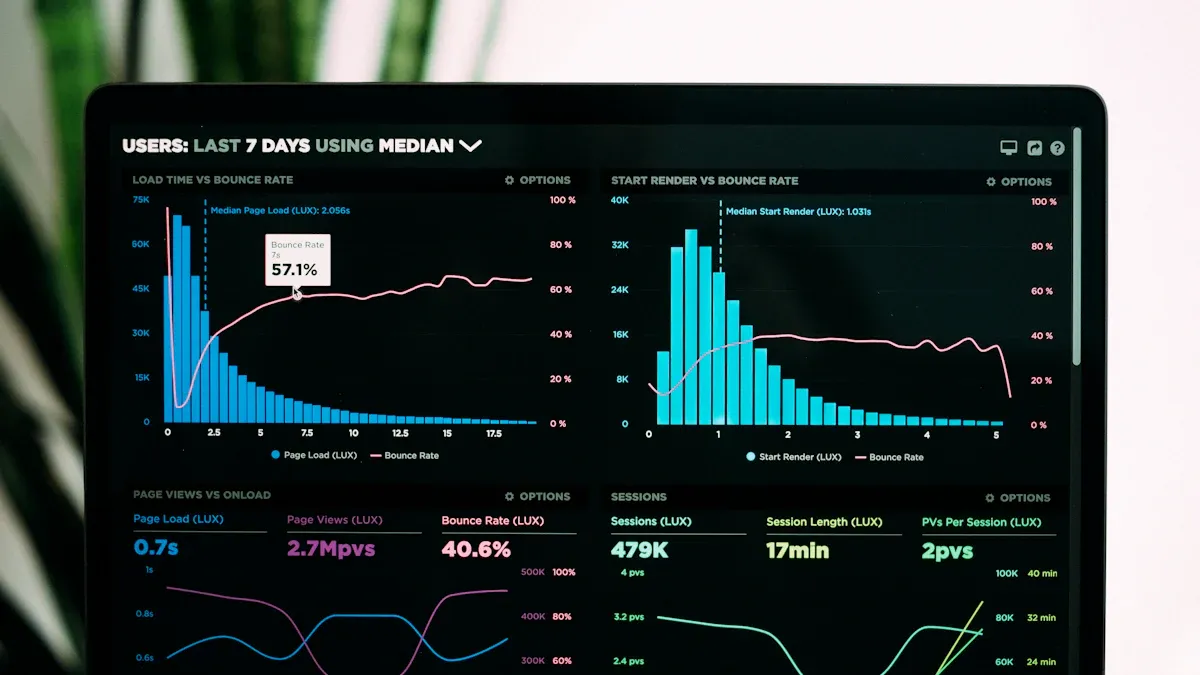
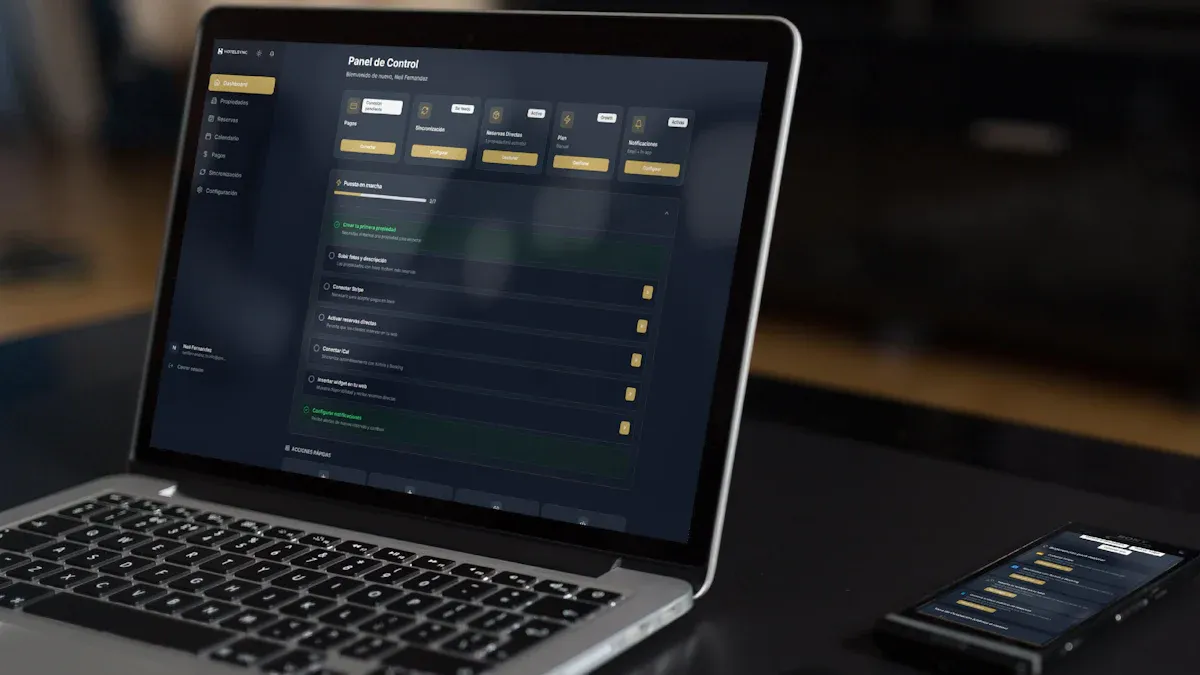
You probably notice how fast data visualization trends change in today’s business world. Companies that use the latest data visualization tools gain real-time insights, spot patterns, and tell better stories with their data. Most decision-makers say data visualization software helps them understand complex information, and the data visualization market keeps growing as more businesses look for an edge. Here are 10 must-have data visualization tools for modern businesses:
FineReport
Tableau
Microsoft Power BI
Google Looker Studio
Qlik Sense
Domo
Sisense
Zoho Analytics
Chartio
Google Data Studio
When you adopt leading data visualization platforms, you can boost sales growth, improve operational efficiency, and support data-driven decision making. Real-time insights and smart data storytelling now shape the future of the data visualization market, so choosing the right solution matters.
Choosing the Best Data Visualization Tools
Key Selection Criteria
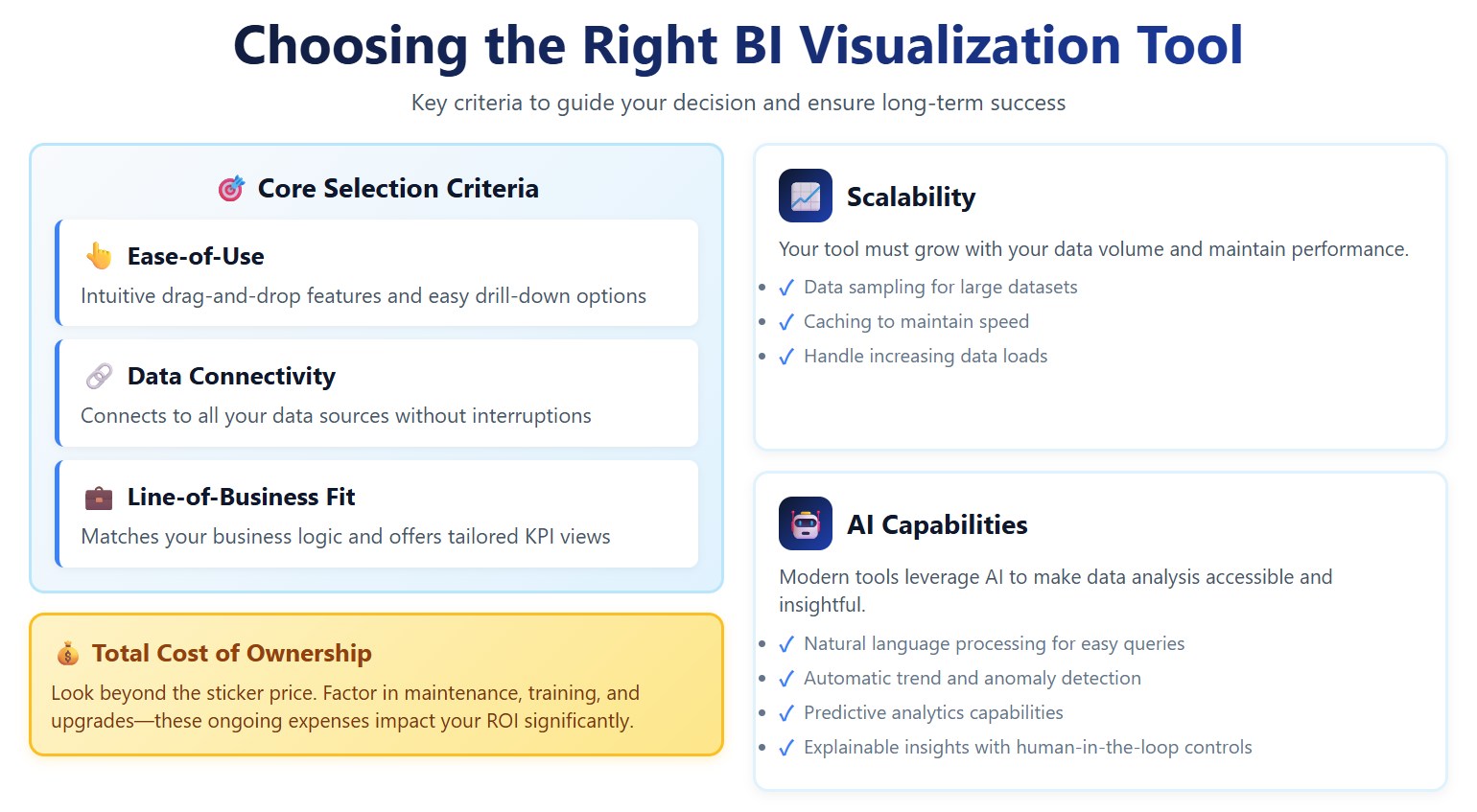
Picking the right data visualization tools can feel overwhelming. You want something that fits your business, works with your data, and helps you tell a clear story. Let’s break down the main criteria you should consider before making a decision.
Here’s a quick table to help you compare what matters most:
Criteria
Description
Ease-of-use
Look for intuitive drag-and-drop features and easy drill-down options.
Data connectivity
Make sure the tool connects to all your data sources without interruptions.
Line-of-business fit
Choose software that matches your business logic and offers tailored views for your KPIs.
You should also think about cost. Don’t just look at the sticker price. Consider ongoing expenses like maintenance, training, and upgrades. These can add up over time and affect your return on investment.
Scalability matters too. As your data grows, your data visualization software needs to keep up. Features like data sampling and caching help maintain speed and performance.
AI capabilities are becoming more important. Some tools let you use natural language processing, so you can ask questions without knowing technical terms. Others highlight trends and anomalies, offer predictive analytics, and explain how insights are generated. Human-in-the-loop controls help you keep results accurate and trustworthy.
Usability and Integration
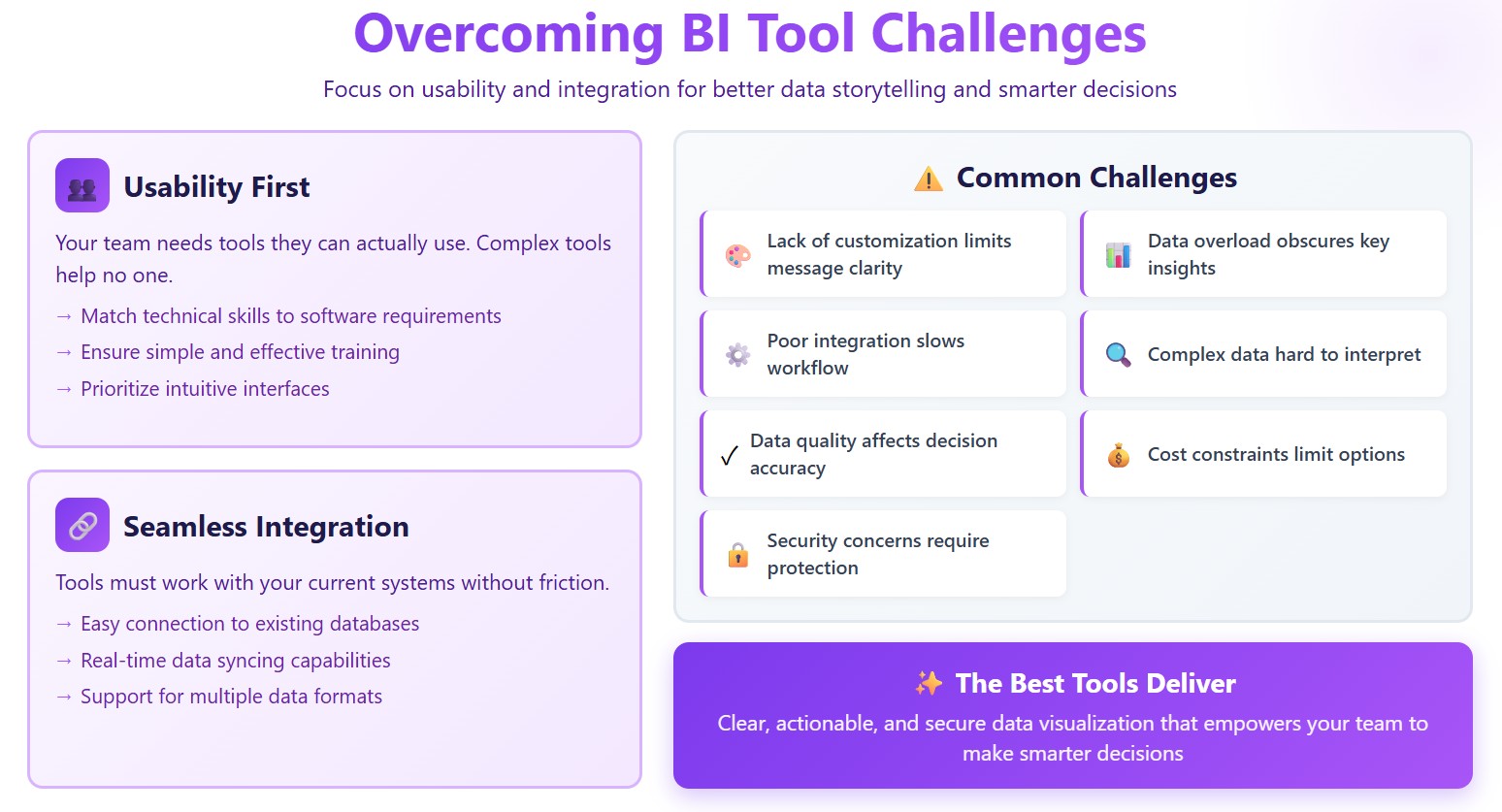
You want data visualization tools that your team can actually use. If a tool is too complex, it won’t help anyone. Make sure your team’s technical skills match the software’s requirements. Training should be simple and effective.
Integration is another big challenge. Many businesses struggle with tools that don’t work well with their current systems. Look for software that connects easily with your databases and supports real-time syncing. It should handle different data formats without complicated steps.
Here are some common integration challenges you might face:
Lack of customization can make it hard to communicate your message.
Data overload makes it tough to find key insights.
Poor integration with existing systems slows down your workflow.
Complex data can be hard to interpret without good visualization.
Data quality and accuracy are critical for smart decisions.
Cost constraints may limit your options.
Security concerns mean you need to protect sensitive information.
When you focus on usability and integration, you set yourself up for better data storytelling and smarter decisions. The best data visualization tools make your data clear, actionable, and secure.
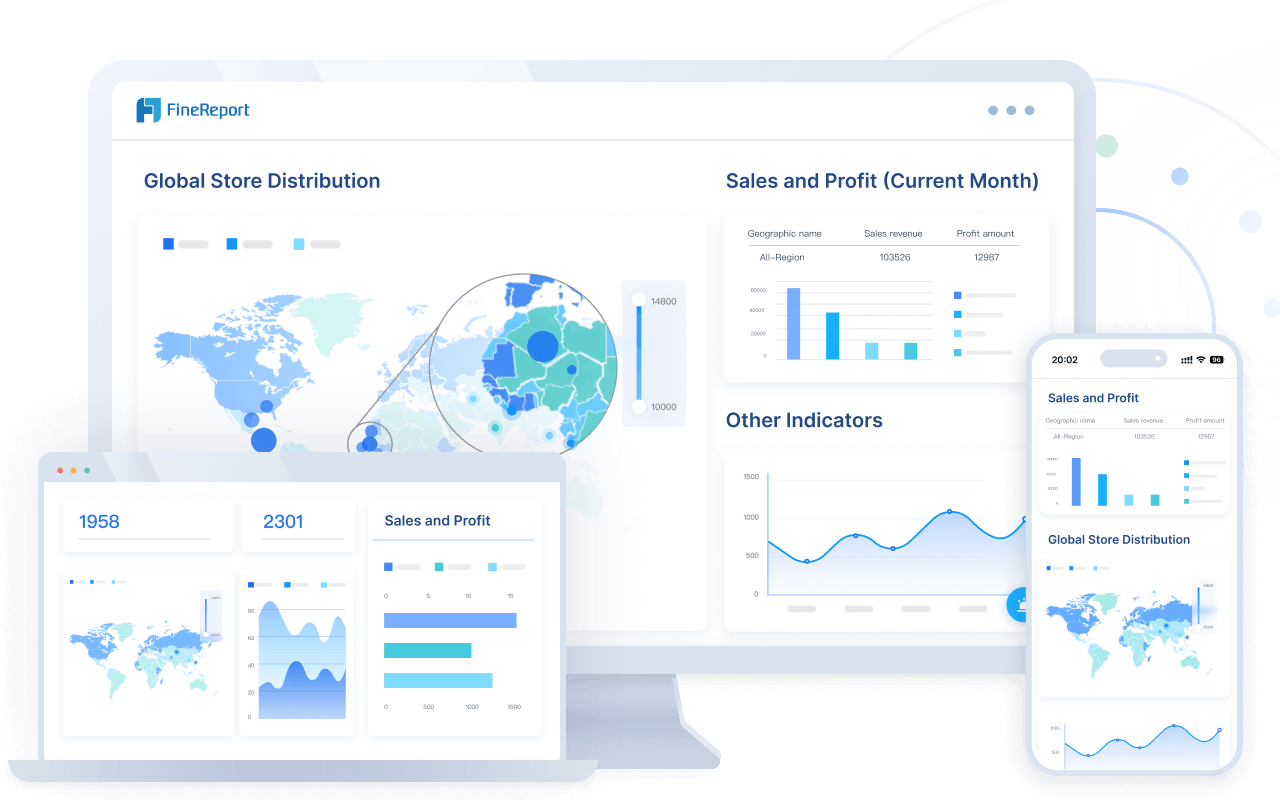
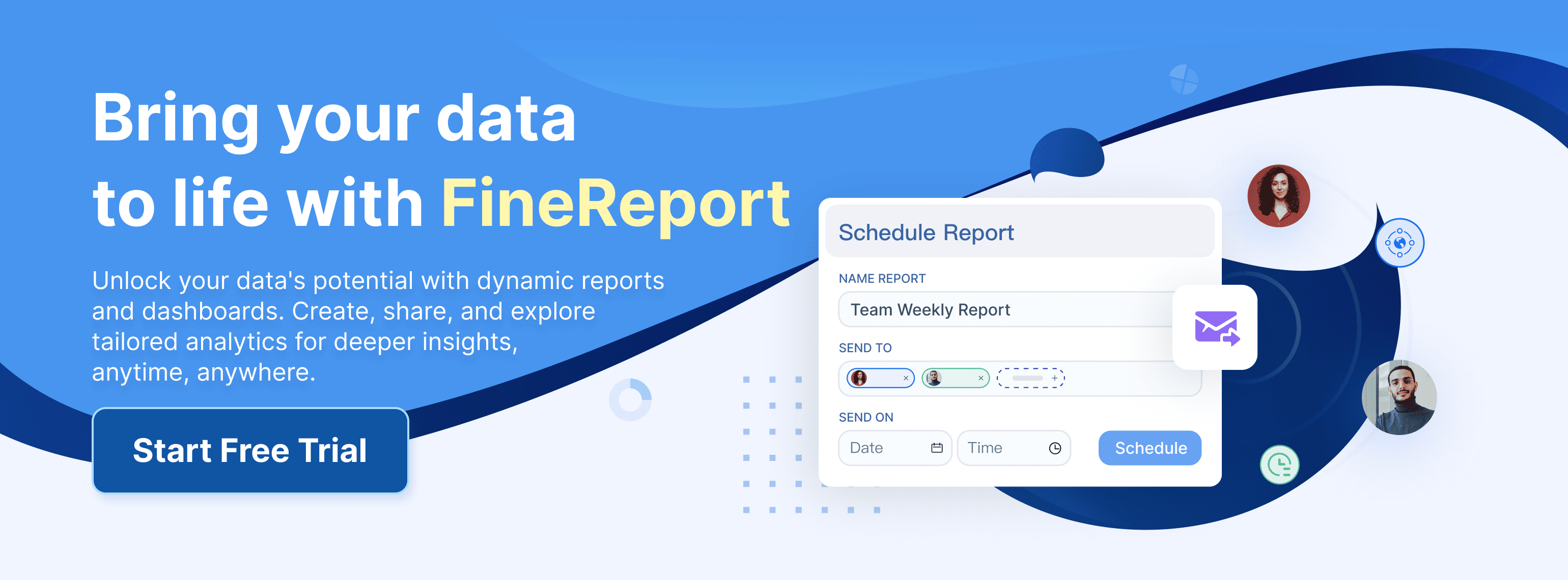
If you want the best data visualization software for your business, FineReport stands out. You get a drag-and-drop report designer that feels familiar, like working in Excel. You can connect to hundreds of data sources, so you never worry about missing information. FineReport lets you build custom reports and import data with just a few clicks. You can create dashboards with 3D charts and animation effects that make your data pop. Mobile BI means you can check your dashboards anywhere—on your phone, tablet, or computer. Automated reporting saves you time by scheduling daily, weekly, or monthly reports. You can export your work in formats like PDF, Excel, or Word.
Tip: FineReport’s custom reports and easy data import/export help you handle complex business needs without extra hassle.
Here’s a quick look at what makes FineReport the best data visualization software:
Feature
Benefit
Drag-and-drop design
Fast, easy report creation
Multi-source integration
Connects to 100+ data sources
3D dashboards
Engaging, interactive data storytelling
Mobile BI
Access insights anywhere
Automated reporting
Saves time, boosts efficiency
Industry Solutions and Use Cases
FineReport delivers industry-specific solutions that help you solve real problems. In manufacturing, companies use FineReport to manage production schedules, monitor equipment, and track costs. For example, Tailer Heavy Industry Co., Ltd. built a global data ecosystem for marketing, production, and finance. Executives use the BOSS dashboard to monitor operations on any device. In retail, BOSIDENG embedded FineReport into store POS systems, connecting directly to SAP HANA for real-time data management. In finance, you can automate budget reports and visualize complex financial indicators with ease.
Customer Success Stories
You don’t have to take my word for it. Bifido Foods, a leading company in Taiwan, uses FineReport to integrate data from multiple sales channels and product lines. Their team built interactive reports that improved decision-making and saved time. UnionPay Data Services, a major player in fintech, unified their data visualization tools with FineReport. They boosted system efficiency and improved customer targeting. These stories show how the best data visualization software can transform your business.
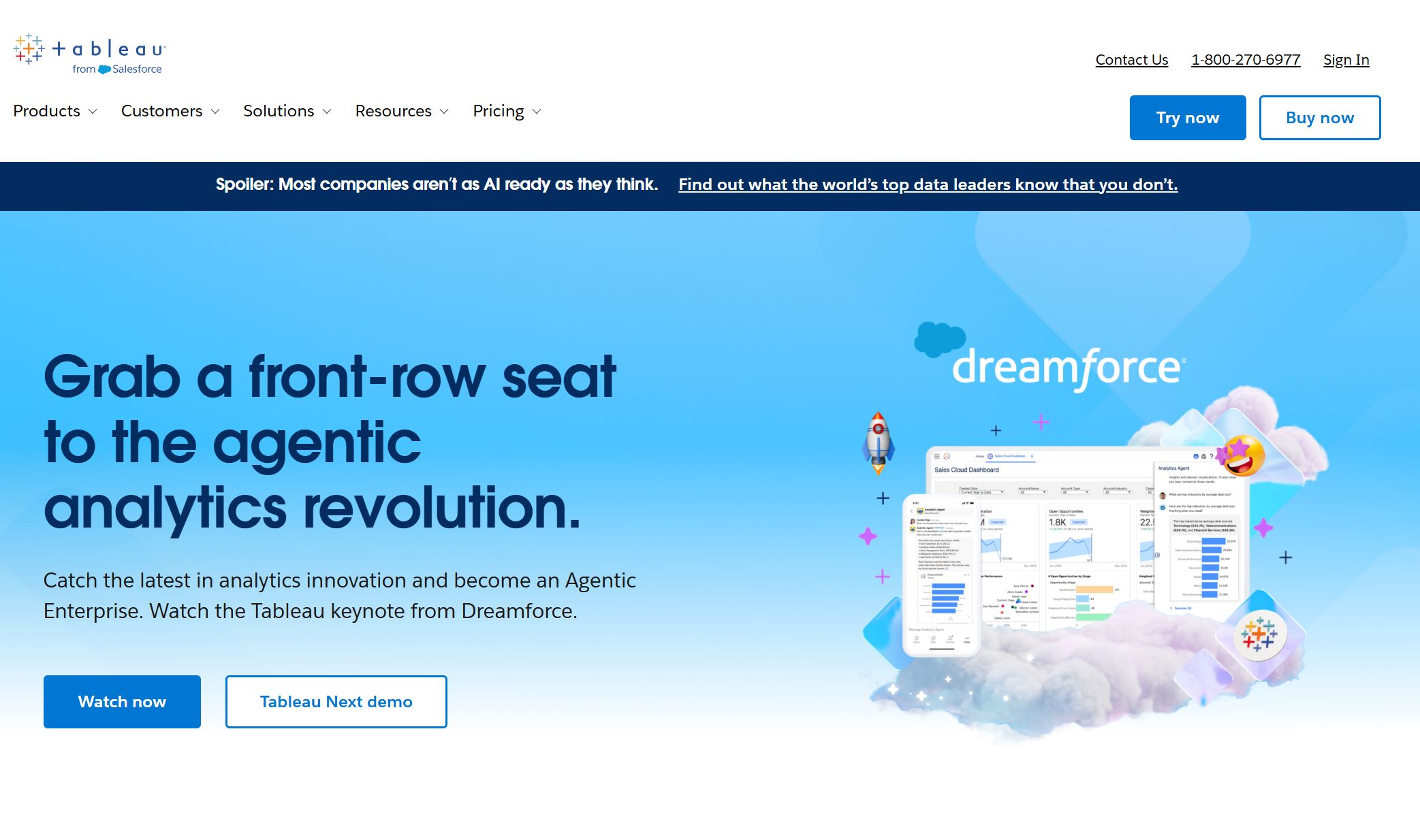
Tableau stands out among data visualization tools because it gives you powerful ways to explore your data. You can connect Tableau to almost any data source, from SQL databases to cloud services. The platform lets you analyze data in real time, so you can make quick decisions when things change. The user interface feels friendly and intuitive, whether you’re a beginner or an expert. You get advanced visualization options, including interactive dashboards and a wide variety of chart types. Customization is easy, so you can adjust colors, fonts, and layouts to match your brand or style.
Feature
Description
Data Connectivity
Connects to many data sources, including SQL and cloud services.
Real-time Data Analysis
Lets you analyze data instantly for fast decision-making.
Visualization Capabilities
Offers interactive dashboards and many chart types.
User Interface
Simple and user-friendly for all skill levels.
Customization Options
Allows you to tailor colors, fonts, and layouts for your needs.
Pros and Cons
You’ll find Tableau has many strengths, but it also comes with a few challenges. Here’s a quick look at what you can expect:
Advantages of Tableau
Description
Data visualization
Creates complex visuals that go beyond spreadsheets.
Interactive visualizations
Drag-and-drop makes building dashboards easy.
Ease of Implementation
No coding needed to get started.
Handles large data sets
Processes millions of rows without slowing down.
Scripting integration
Works with Python and R for advanced calculations.
Mobile support
Dashboards look good on any device.
Leading company strategy
Tableau is a top choice for data visualization software.
Disadvantages of Tableau
Description
Report scheduling
Lacks automatic report refreshing.
Custom visual imports
Limited options for importing custom visuals.
Formatting challenges
Conditional formatting can be tricky.
Static parameters
Only allows single value selections for parameters.
Screen resolution issues
Dashboards may not display well on all screens.
Data preprocessing
Basic capabilities for preparing data.
Scaling and pricing
Costs can be high for large organizations.
Note: Tableau makes data storytelling easy, but you should check if its features fit your business needs before investing.
Ideal Use Cases
Tableau works best when you need to dig deep into your data and uncover trends. You can use it for:
Time-series analysis to track changes over time
Predictive analysis to forecast future outcomes
Cohort analysis to compare groups
Segmentation to break down your audience
Scenario and what-if analysis for planning
Advanced calculations and statistical functions
Integrating with external services for richer insights
If your business relies on exploring large datasets or needs interactive dashboards for decision-makers, Tableau is a smart choice among data visualization tools.
3.Microsoft Power BI: Top Data Visualization Platform
You want a data visualization platform that works with your business, no matter how your data looks. Microsoft Power BI gives you plenty of options. You can connect to cloud services, on-premise databases, and even platforms like Salesforce or Google Analytics. The drag-and-drop dashboard builder makes it easy to create interactive visuals, even if you’re new to data visualization tools. Sharing reports is simple. You can use Microsoft Teams or SharePoint to collaborate with your team in real time. Power BI also lets you set role-based access, so you control who sees sensitive information. If you need advanced analytics, you’ll find robust features for deep data exploration.
Feature
Description
Integration Capabilities
Connects to cloud, on-premise, and third-party platforms for flexible data access.
Visualization Options
Drag-and-drop interface with customizable visuals for easy dashboard creation.
Collaboration Features
Share reports through Teams and SharePoint, with real-time editing and access controls.
Tip: You can start with basic dashboards and scale up as your data needs grow.
Pros and Cons
Power BI stands out among data visualization software because it’s affordable and backed by Microsoft’s constant updates. You get a free desktop version, and the Pro license costs less than many competitors. Developers can create custom visuals, so your dashboards look unique. However, you might run into limits with large datasets. The platform restricts uploads to 1GB for internal datasets. The many components can feel confusing, especially when you’re new. Formatting quirks and default settings sometimes slow you down.
Strengths
Description
Cost-Effectiveness
Free desktop version; Pro license is budget-friendly.
R&D Backing
Microsoft’s roadmap means regular improvements.
Custom Visualization
Developers can build and share custom visuals.
Weaknesses
Description
Data Size Limitations
1GB dataset limit can be tough for big data projects.
Ecosystem Complexity
Many components may confuse new users.
Quirks and Nuances
Formatting and default settings can be tricky.
You may find the learning curve steep if you want to use advanced features.
Power BI does not offer a desktop version for Mac or Linux.
Large datasets may require workarounds due to upload limits.
Best Use Cases
You can use Power BI in almost any industry. Retailers track sales trends and inventory. Manufacturers monitor production and quality. Finance teams analyze budgets and forecasts. Healthcare organizations manage patient data and outcomes. Power BI fits businesses of all sizes. You can start small and add complexity as your needs change. The platform helps you make better decisions, improve teamwork, and handle large amounts of data with ease.
Note: Power BI’s flexibility makes it a top choice for companies that want to grow their analytics over time.
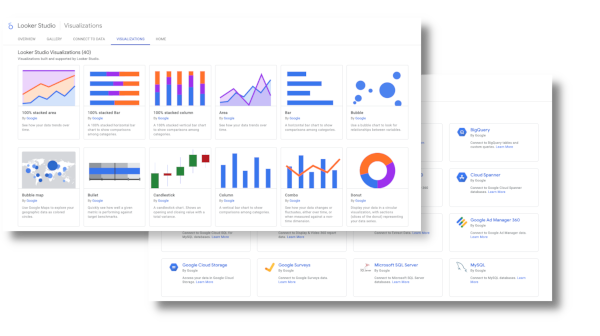
You want a tool that makes your data easy to understand. Google Looker Studio brings ai data visualization to the next level. You can describe metrics in plain language, and the AI suggests formulas for you. This means you spend less time figuring out how to set up your dashboard. The platform can generate complete reports from a simple prompt. You get visualizations and layouts without manual setup. The AI also helps you tell better stories with your data. It suggests the best charts and creates summaries that make your reports more impactful. If you’re not a data expert, you’ll appreciate how the AI makes data interpretation simple. You can even turn dashboards into presentations with insightful summaries, saving you hours of work.
Natural language metric description
Auto-generated report drafts
Enhanced data storytelling
Data literacy support for non-technical users
Automated presentation creation
You don’t need to be a tech wizard to use ai data visualization features in Looker Studio. The platform makes data accessible for everyone.
Pros and Cons
Google Looker Studio gives you a lot of flexibility. You get a free basic version, which is great if you’re just starting with data visualization tools. The dashboard and report creation process feels intuitive. You can use templates for quick reports and customize them as needed. The platform connects to many data sources, so you can pull in information from almost anywhere. Sharing reports is easy, which helps your team stay on the same page.
Pros
Cons
Free basic version available
Lack of transparent pricing
Intuitive dashboard and report creation
Looker add-on integrations are priced individually
Convenient templates for quick reports
Limited customer support for free users
Versatile and customizable options
May be challenging for larger organizations
Access to numerous data sources
Lagging issues during larger projects
Convenient report sharing
If you run a small business or want to try ai data visualization without a big investment, Looker Studio is a smart choice. Larger organizations may need to plan for scaling and support.
Use Cases
You can use Google Looker Studio’s ai data visualization features in many industries. Healthcare teams analyze patient data to improve care and reduce readmission rates. Retailers track sales and customer engagement, using insights to boost marketing and manage inventory. Finance professionals use the platform for risk management and compliance, spotting fraud and streamlining reports. Manufacturers rely on ai data visualization for predictive maintenance and real-time quality monitoring. Schools and universities analyze student performance and optimize resources to help students succeed.
Industry
Use Case Description
Healthcare
Enhancing patient care and operational efficiency through data analysis to reduce readmission rates and optimize resource allocation.
Retail
Driving sales and customer engagement by analyzing purchasing patterns for personalized marketing campaigns and optimizing inventory management.
Finance
Enhancing risk management and compliance through fraud detection and streamlined regulatory reporting processes.
Manufacturing
Improving production and quality control with predictive maintenance and real-time quality monitoring.
Education
Enhancing student outcomes and institutional efficiency by analyzing student performance and optimizing resource allocation.
You can see how ai data visualization helps you make smarter decisions, no matter your field. The platform’s flexibility and smart features make it a top pick among data visualization software.
5.Qlik Sense: Best Data Visualization Tools for Business
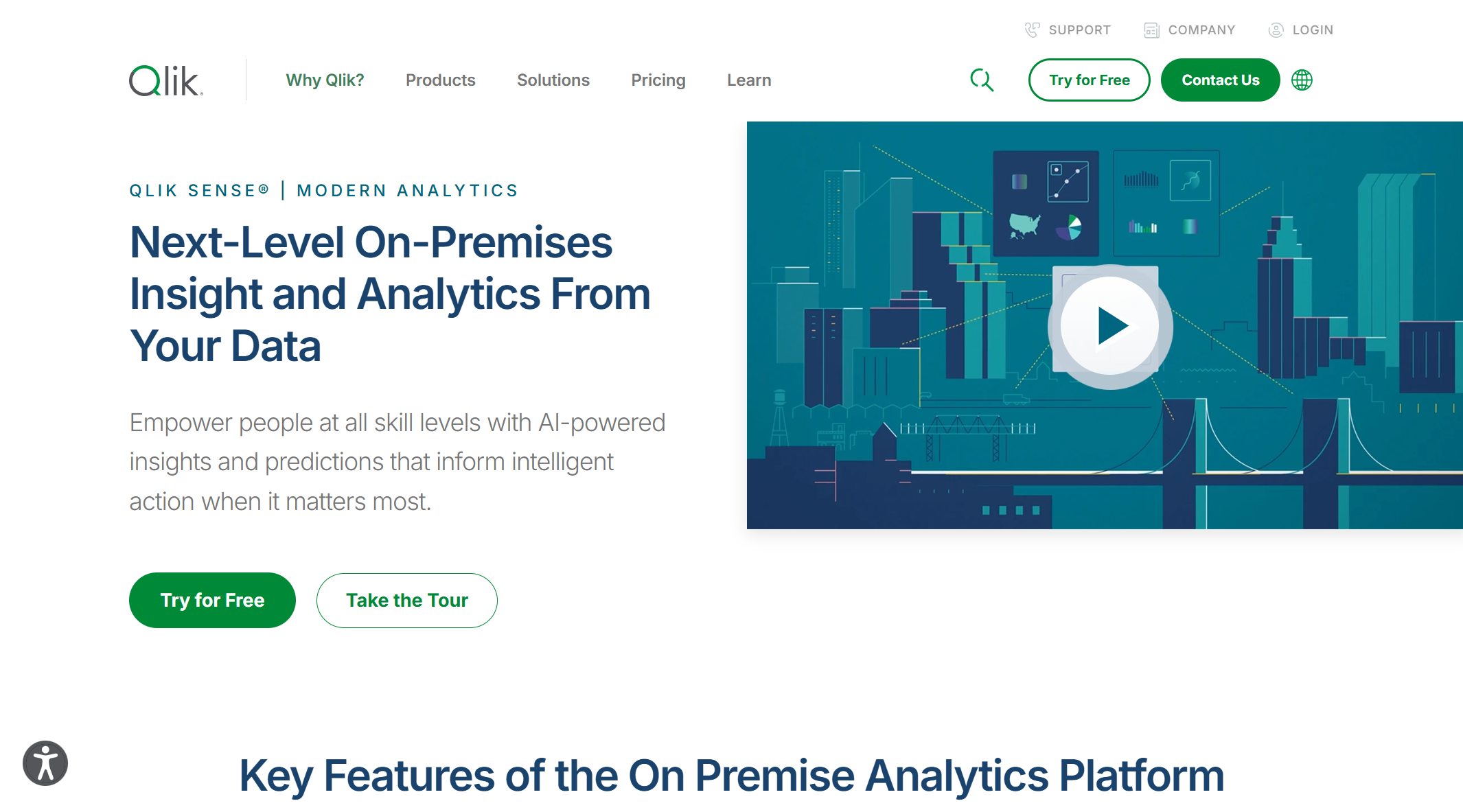
Qlik Sense gives you the power to explore your data with ease. You can create dashboards and reports on your own, even if you don’t have a technical background. The platform’s associative engine helps you find patterns and connections that might go unnoticed in other data visualization tools. You get interactive charts and graphs that make complex information simple to understand. Qlik Sense connects to many data sources, so you can pull in information from different places without a hassle. The built-in ETL features let you clean and transform your data, making sure your insights are accurate. Security is strong, with role-based controls to keep your data safe. You can start small and scale up as your business grows, thanks to flexible deployment options. Fast in-memory processing means you get answers quickly, even with large datasets.
Here’s a quick look at what Qlik Sense offers:
Feature
Description
Self-Service Capabilities
Build dashboards and reports without IT help
Associative Engine
Explore data relationships intuitively
Advanced Visualizations
Use interactive charts and graphs
Data Connectivity
Connect to multiple data sources easily
ETL Functionalities
Clean and transform data for better accuracy
Enterprise Security
Protect data with role-based access
Scalability
Grow from small teams to large enterprises
In-Memory Processing
Get fast responses for quick decision-making
Pros and Cons
Qlik Sense stands out among data visualization software for its flexibility and user-friendly design. You can try it for free and enjoy affordable pricing for small teams. The platform works on many devices and supports easy sharing and collaboration. You can even build custom applications to fit your needs. However, you might notice slower performance with very large datasets. Some features and add-ons cost extra, and not all information exports smoothly to Excel. For big organizations, the price can add up.
Advantages
Disadvantages
Affordable price point
Slows down with large data sets
Free trial available
Can be expensive for large teams
Improves data literacy
Not all info downloads to Excel
Works on many devices
Add-ons and features may cost extra
Tip: If you want a flexible tool that grows with your business, Qlik Sense is a smart choice. Just keep an eye on extra costs as your needs expand.
Use Cases
You’ll find Qlik Sense in many industries. Retailers use it to track customer buying habits, manage inventory, and spot sales trends. Healthcare teams visualize patient data to improve care and cut costs. Financial services rely on Qlik Sense for risk assessment, fraud detection, and portfolio analysis. Manufacturers monitor production and quality with interactive dashboards. Government agencies use it to share public service metrics and boost transparency.
Publish transparency reports, track public service performance
Qlik Sense helps you turn raw data into clear, actionable insights. If you want data visualization tools that support growth and make your data easy to understand, this platform deserves a spot on your shortlist.
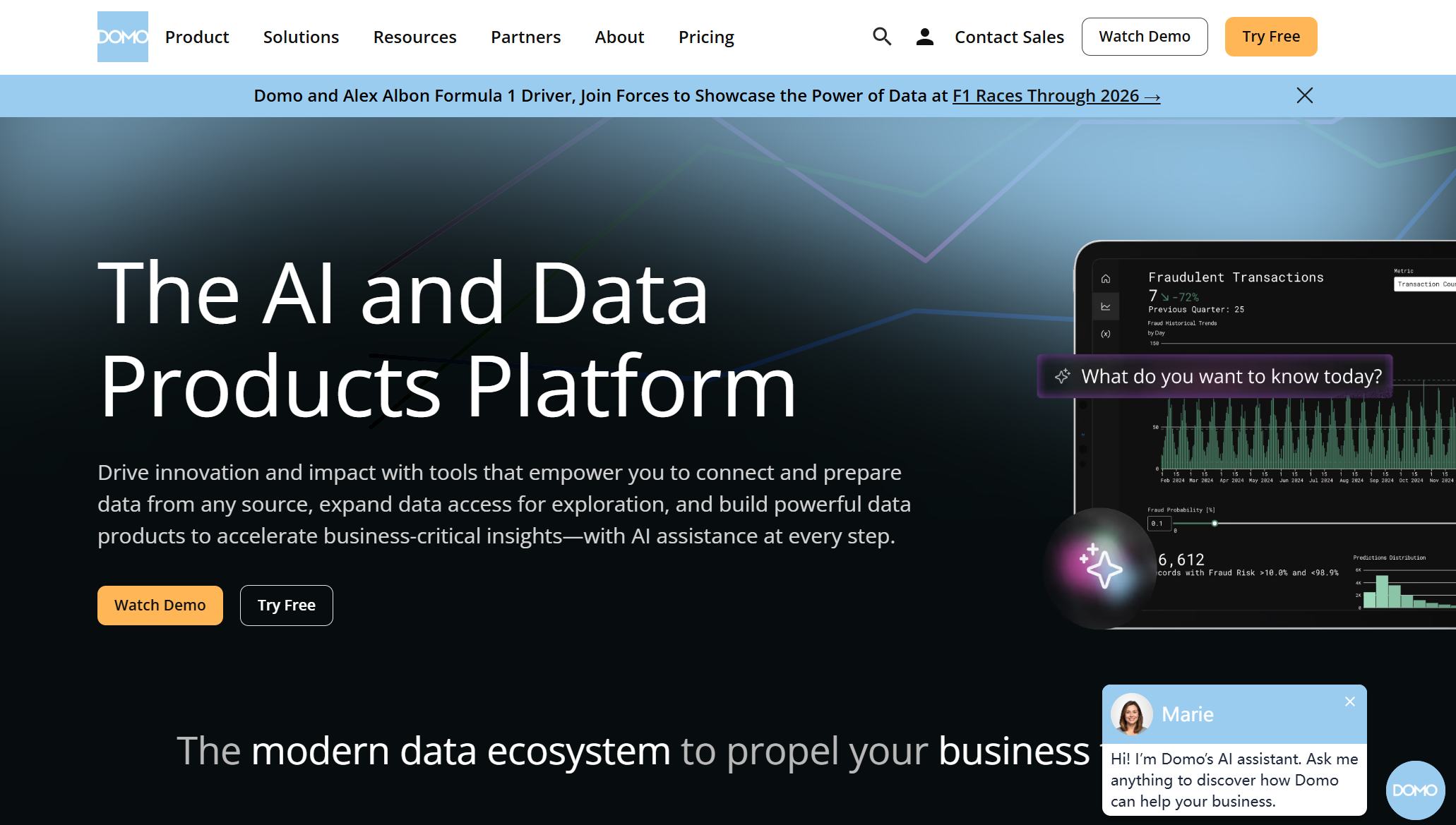
You want a platform that makes working with data easy. Domo stands out among cloud-based data visualization tools because it gives you real-time access to your information. You can connect to many third-party apps without any hassle. The drag-and-drop interface lets you build charts and dashboards quickly, even if you have no coding experience. Domo’s AI features help you spot trends and generate insights faster. You can customize dashboards to fit your needs, so you always see the most important numbers. The online ETL tool makes data integration simple, so you spend less time setting things up and more time analyzing results.
Here’s what you get with Domo:
Wide range of data visualization tools for turning complex data into clear insights.
Real-time data access for timely decisions.
AI-powered analysis to uncover patterns and trends.
Seamless connections to third-party tools.
Easy drag-and-drop design for building visualizations.
Customizable dashboards for quick insights.
Online ETL component for simple data integration.
Tip: Domo’s user-friendly design means anyone on your team can create reports and dashboards without special training.
Pros and Cons
Domo gives you a lot of flexibility, but you should know what to expect before you dive in. Here’s a quick look at the ups and downs:
Pros:
You get instant access to data from anywhere.
The platform works for users of all skill levels.
AI features help you find insights faster.
Integration with other tools is smooth and reliable.
You can build dashboards without writing code.
Cons:
You may need to pay extra for advanced features.
Large datasets can slow down performance.
Customization options sometimes feel limited compared to other data visualization software.
Use Cases
Domo helps you solve real business problems. You can use it to track competitors, improve employee satisfaction, and understand customer needs. Here’s how businesses use Domo every day:
Use Case
Description
Competitor Intelligence
Identify market opportunities to outperform rivals by understanding market dynamics and trends.
Human Resources
Ensure employee satisfaction and productivity by addressing their needs and benefits effectively.
Data Extraction
Collect and analyze essential data to understand customer pain points and optimize promotions.
You can see how Domo’s data visualization tools help you make smarter decisions and keep your business moving forward.
You want data visualization tools that make your life easier. Sisense uses AI to help you find answers fast. You can ask questions in plain English and get instant charts. The AI Assistant lets you talk to your data, just like chatting with a friend. Sisense Narratives give you simple summaries of your charts, so you know what matters most. The platform predicts future trends using machine learning. You get guidance and insights right inside your workflow. Here’s a table that shows what Sisense brings to the table:
Feature
Description
AI-powered insights
Automates analysis and gives you predictive answers.
Natural Language Query
Lets you ask questions and see results in real time.
Conversational Interfaces
Use dialogue-driven prompts for easy data exploration.
Contextual AI
Generates insights and tips while you work.
Assistant
Helps you build analytics through simple conversations.
Narrative
Summarizes charts and widgets in plain language.
Forecast
Predicts future trends for smarter decisions.
Tip: Sisense makes data visualization software feel more like a helpful partner than a complicated tool.
Pros and Cons
Sisense gives you lots of power, but you should know what to expect. You get strong embedded analytics and flexible automation. The platform handles big datasets with ease. You can use APIs to automate tasks and connect with other systems. On the flip side, Sisense can use a lot of resources, especially with ElastiCubes. The price for embedding features runs high. Some business users find it hard to get started. There’s no semantic modeling layer, which means you might need extra setup for complex projects.
Strengths
Weaknesses
Embedded analytics strength
Resource-hungry ElastiCubes
Flexible and extensible
High pricing for embedding
API-driven automation
High barrier for business users
Handles large datasets
No semantic modeling layer
Note: Sisense works best for teams that want advanced data visualization tools and have technical support.
Use Cases
You can use Sisense in many industries. Financial services rely on it to spot fraud and track portfolios. Manufacturers use it to monitor machines and catch defects quickly. Supply chain teams get a clear view of shipments and routes. Healthcare providers use Sisense for better patient care and smoother operations. Here’s a quick look at how different industries benefit:
Industry
Use Case Highlights
Financial Services
Detect fraud, track performance, support compliance.
Manufacturing
Monitor machine efficiency, track defects in real time.
Supply Chain & Logistics
See shipments, route efficiency, and bottlenecks.
Healthcare & Pharma
Improve patient care and boost operational efficiency.
If you want data visualization software that uses AI to make your job easier, Sisense is worth a look. You get smart features, strong analytics, and support for big data projects.
8.Zoho Analytics: Affordable Data Visualization Software
You want a data visualization software that gives you plenty of value without breaking the bank. Zoho Analytics makes it easy for you to connect with all your data sources. You can use over 500 native connectors, so you never feel limited. The drag-and-drop interface helps you build charts and dashboards quickly, even if you don’t have technical skills. Zoho’s AI assistant, Zia, lets you ask questions in plain English and get instant answers. You can analyze data, spot trends, and create reports with just a few clicks. The platform supports advanced analytics, so you can dig deeper when you need to. You get enterprise-grade security, which keeps your data safe. Mobile BI access means you can check your dashboards anywhere, anytime. Zoho Analytics scales with your business, so you don’t have to worry about outgrowing your data visualization tools.
Tip: Zoho Analytics helps you collaborate with your team and share insights easily, making teamwork smooth and productive.
Feature
Description
Extensive data connectivity
Integrates with many sources, saving you time and money.
AI-powered assistant (Zia)
Lets you ask questions in plain language for quick insights.
Drag-and-drop visualization tools
Makes creating charts and dashboards simple.
Advanced analytics capabilities
Supports both basic and complex analysis.
Collaboration and sharing options
Helps your team work together and share reports.
Enterprise-grade security
Protects your data from threats.
Mobile BI access
Lets you view dashboards on the go.
Scalability
Grows with your business needs.
Pros and Cons
Zoho Analytics gives you a lot of flexibility, but you should know what to expect. You get easy report creation, customizable dashboards, and interactive filters. The platform supports collaboration and sharing, so your team stays connected. AI features like natural language analysis and anomaly detection help you find insights faster. Security and compliance standards keep your data protected.
Pros:
Abundant connectivity with hundreds of native connectors
Simple drag-and-drop interface
Customizable dashboards for actionable insights
Interactive filters for data segmentation
Strong collaboration and sharing features
AI functions for smarter analysis
Robust security and compliance
Cons:
The huge number of features can overwhelm you if you’re new to data visualization tools.
Add-on costs may stretch your budget, especially for small businesses.
Customer support responses sometimes take longer than expected.
Data migration can be tricky and may need technical help.
Performance can slow down during busy hours.
Note: Zoho Analytics works best for teams that want affordable data visualization software with plenty of features, but you should plan for a learning curve.
Use Cases
You can use Zoho Analytics in many industries. Retailers track sales and inventory trends. Healthcare teams monitor patient outcomes and resource use. Finance professionals analyze budgets and spot risks. Manufacturers optimize production and quality. Schools and universities use it to improve student performance and manage resources. Zoho Analytics helps you turn raw data into clear, actionable insights. You get the flexibility to build dashboards that fit your business, share reports with your team, and make smarter decisions every day.
You want a platform that makes data easy for everyone. Chartio stands out because it focuses on making data visualization simple, even if you are not a tech expert. The interface feels friendly and lets you explore data without feeling lost. Chartio uses Visual SQL, which means you can build charts by clicking and dragging instead of writing code. This feature helps you ask questions and get answers fast. You can organize dashboards so your team always knows where to find important information. The design is clean and keeps everything in one place.
Here’s a quick look at what Chartio offers:
Feature
Description
Visual SQL
An intuitive way to create charts for users of all skill levels.
Intuitive Design
Makes data visualization easy for non-experts.
Organized Dashboards
Lets you manage and view data in a structured way.
Visual SQL works for everyone, from business users to data pros.
The click-and-drag setup means you don’t need to know SQL to get started.
Schema-level access lets more people in your company explore data on their own.
Pros and Cons
Chartio gives you a lot of freedom to explore your data. You can build dashboards quickly and share them with your team. The platform helps people with different backgrounds work together. You do not need to spend hours learning new skills. However, Chartio may not have as many advanced features as some other data visualization software. If you need deep analytics or custom visuals, you might want to look at other data visualization tools.
Tip: If you want a tool that helps your whole team understand data, Chartio is a great pick.
Use Cases
You can use Chartio in many ways. Sales teams track leads and see which products sell best. Marketing teams watch campaign results and adjust their plans. Operations managers follow daily numbers and spot problems early. Even if you are new to data, you can build reports and dashboards that help your business grow. Chartio makes it easy for everyone to join the conversation and make smarter choices.
10.Google Data Studio: Free Data Visualization Tools
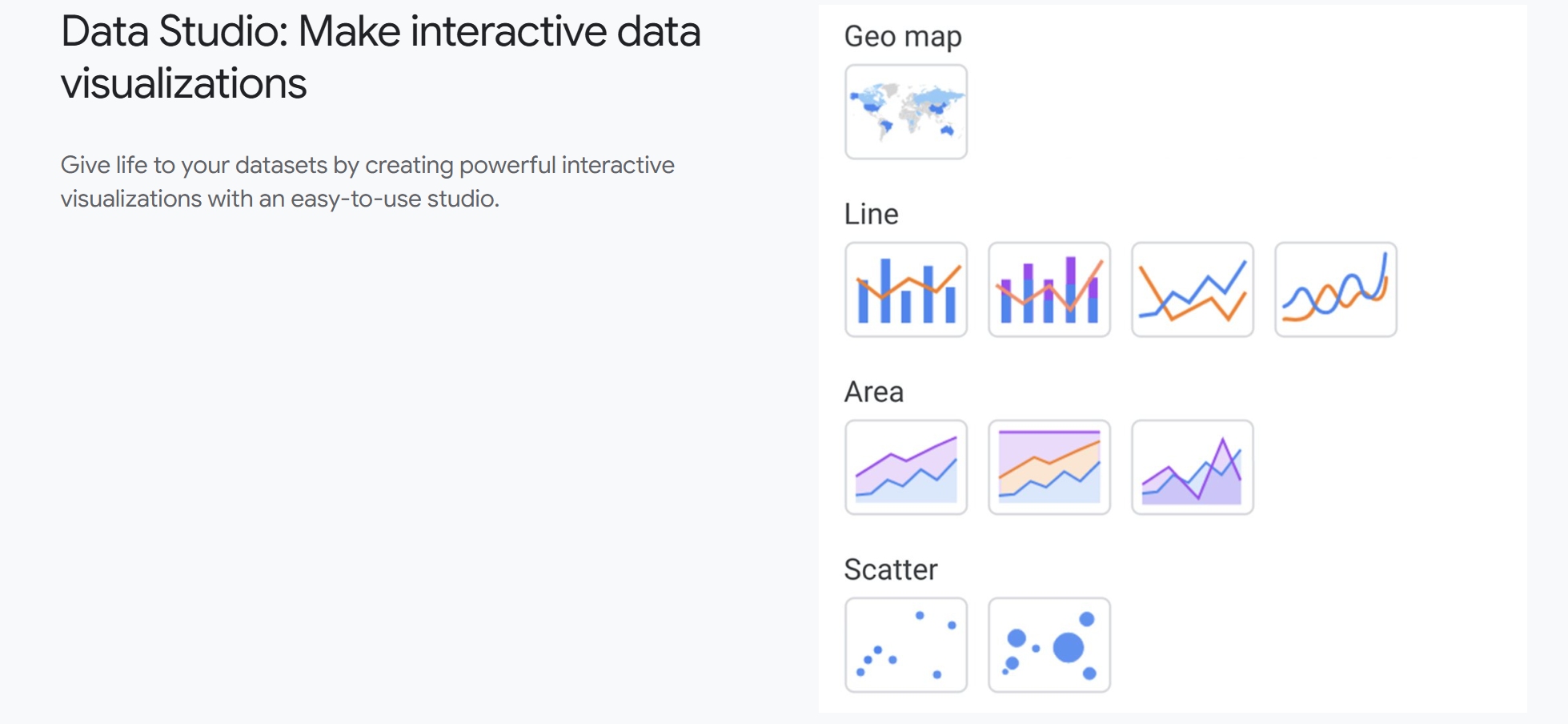
You want a free and easy way to turn your data into clear visuals. Google Data Studio gives you just that. You can connect to Google Sheets, BigQuery, and other sources with a few clicks. The drag-and-drop interface lets you build charts, graphs, and dashboards without coding. You get real-time updates, so your reports always show the latest numbers. You can customize colors, fonts, and layouts to match your brand. Sharing reports is simple. You send a link, and your team sees the same dashboard. You can even embed reports on your website.
Tip: Try using templates if you want to save time. They help you get started fast and look professional.
Pros and Cons
Google Data Studio stands out among data visualization tools because it is free and works well with other Google products. You do not need special training to use it. The platform supports collaboration, so you and your team can edit reports together. You get unlimited reports and viewers. However, you might notice some limits. The platform can slow down with large datasets. Some advanced features found in paid data visualization software are missing. You may need third-party connectors for non-Google sources.
Pros
Cons
Free to use
Slows down with big data
Easy Google integration
Limited advanced features
Real-time updates
Needs connectors for some sources
Simple sharing and embedding
Basic support for complex analytics
Unlimited reports and viewers
Use Cases
You can use Google Data Studio in many ways. Marketers track website traffic and campaign results. Sales teams monitor leads and revenue. Teachers create dashboards to show student progress. Nonprofits share impact reports with donors. Small businesses use it to watch expenses and sales trends. You can build custom dashboards for any project. The platform helps you tell your story with data, making it easier to spot patterns and take action.
If you want a free tool that helps you visualize data and share insights, Google Data Studio is a smart choice.
Comparing the Best Data Visualization Tools
Choosing the right data visualization tools can feel tricky. You want something that fits your business, works with your data, and helps you make smart decisions. Let’s break down the top options so you can see what stands out.
Feature Comparison Table
Here’s a quick table to help you compare the most important factors. You’ll see how each tool stacks up in terms of features, ease of use, pricing, support, scalability, and security.
Tool
Features & Functionality
Ease of Use
Price & Value
Support & Community
Scalability & Integration
Security & Compliance
FineReport
Real-time dashboards, 3D charts
Drag-and-drop
Cost-effective
Strong support
High, 100+ sources
Enterprise-grade
Tableau
Advanced analytics, rich visuals
Intuitive
Premium
Large community
Scales well
Robust
Power BI
Custom visuals, deep integration
User-friendly
Affordable
Microsoft backed
Flexible
Strong
Looker Studio
AI-driven, auto reports
Simple
Free/basic
Google support
Good for small teams
Secure
Qlik Sense
Associative engine, ETL
Self-service
Mid-range
Active community
Scalable
Secure
Domo
Cloud, AI insights
Easy
Premium
Good support
Scales in cloud
Secure
Sisense
AI assistant, embedded analytics
Conversational
Premium
Developer support
Scalable
Secure
Zoho Analytics
500+ connectors, AI assistant
Drag-and-drop
Affordable
Growing community
Scalable
Secure
Chartio
Visual SQL, simple dashboards
Very easy
Mid-range
Helpful support
Good for SMBs
Secure
Data Studio
Free, Google integration
Simple
Free
Google support
Good for small teams
Secure
Pricing Overview
You want to know what fits your budget. Some tools offer free versions, while others charge by user or feature. FineReport and Zoho Analytics give you cost-effective options for growing businesses. Tableau, Domo, and Sisense sit at the premium end, best for larger teams with bigger budgets. Power BI offers a free desktop version and affordable upgrades. Google Data Studio and Looker Studio let you start for free, which is great if you’re just getting started.
Best For
Each tool shines in different scenarios. FineReport works well for manufacturing, finance, and any business needing custom dashboards. Tableau fits companies that want deep analytics and rich visuals. Power BI is perfect if you use Microsoft products. Looker Studio and Data Studio are great for small teams or those who want free tools. Qlik Sense and Sisense help with advanced analytics and big data. Zoho Analytics suits businesses that want lots of connectors and easy AI features. Chartio is ideal for small and medium businesses that want simple dashboards.
Tip: Think about your team’s skills, your data sources, and your budget before you choose. The best data visualization tools help you turn numbers into clear stories.
Choosing the right data visualization tools can change how you see your business. Think about your goals, your team’s skills, and how your data flows. Match the tool to your needs, not just the features. Review your data strategy often. Stay open to new trends in AI and analytics. You will keep your business ahead and make smarter decisions every day.
Access a wealth of case studies, industry insights, and solution guides to accelerate digital transformation.
FAQ
What is the best data visualization tool for beginners?
You should try Google Data Studio or Chartio. Both offer simple drag-and-drop interfaces. You can build dashboards without coding. These tools help you get started fast and learn as you go.
Can I use data visualization tools on my phone?
Yes! Many platforms, like FineReport and Power BI, have mobile apps. You can view dashboards, get alerts, and make decisions anywhere. Just download the app and log in.
How do I connect my data sources?
Most tools let you connect databases, spreadsheets, or cloud services with a few clicks. You pick your source, enter your credentials, and start visualizing. Some platforms support over 100 connections.
Are there free data visualization tools available?
Absolutely! Google Data Studio and Looker Studio offer free versions. You can create unlimited reports and dashboards. These tools work well for small teams or personal projects.
Do I need coding skills to use these tools?
No, you don’t. Most data visualization software uses drag-and-drop features. You can build charts and dashboards without writing code. If you want advanced features, some tools let you add scripts.