

If you are searching for the Power BI API, you are usually trying to solve one of two problems:
- You want to automate or control Power BI itself — such as refreshing datasets, managing workspaces, or supporting embedded analytics.
- You want to pull data from another application into Power BI — such as a CRM, finance app, marketing platform, or support tool.
Those are related, but they are not the same thing. For beginners, this is where most confusion starts.
In practical terms, “Power BI API” can refer to two different workflows:
- The Power BI REST API, which is used to interact with the Power BI service and its objects
- External web APIs used through Power Query, which are used to import third-party data into your Power BI model
Understanding that difference early will save you time, reduce authentication issues, and help you choose the right setup for reporting, automation, or governance.
Quick Comparison Table
| Criteria | Power BI REST API | Web APIs in Power Query |
|---|---|---|
| Main purpose | Manage and automate Power BI service objects | Import external application data for reporting |
| Typical use cases | Trigger refresh, audit workspaces, manage reports, embedding, admin tasks | Pull CRM, finance, marketing, support, or SaaS data into a model |
| Works with | Power BI workspaces, datasets, reports, dashboards, admin resources | Third-party systems exposing API endpoints |
| Common users | Developers, BI admins, platform teams, embedded analytics teams | Analysts, BI developers, data modelers |
| Authentication | Often OAuth, delegated access, app registration, service principal | API keys, OAuth, bearer tokens, headers, parameters |
| Output | Platform actions, metadata, governance operations | Tables and records used for analysis and dashboards |
| Best entry point for beginners | Start with simple read operations and test calls | Start with Web connector and a basic JSON endpoint |
| Refresh considerations | Depends on endpoint, permissions, and app configuration | Depends on connector compatibility, credentials, pagination, and schema stability |
| When to choose it | When you need to control Power BI | When you need data from another system |
For most beginners, the decision is simple:
- If you need to manage Power BI, use the Power BI REST API
- If you need to bring business data into Power BI, use Power Query with a web API
What the Power BI API includes for beginners

Clarify the difference between the Power BI REST API and calling external web APIs through Power Query
The Power BI REST API is a set of service endpoints for working with Power BI programmatically. It is commonly used for:
- Managing workspaces
- Working with datasets and reports
- Triggering refreshes
- Supporting embedded analytics
- Performing administration and governance tasks
By contrast, calling a web API through Power Query means using Power BI Desktop or the Power BI service to fetch data from an external system. In that workflow, the API is the data source, not the platform being controlled.
A simple way to remember it:
- REST API = control the Power BI platform
- Web API in Power Query = pull data into Power BI
Explain when each approach is useful for reporting, automation, embedding, and data retrieval
Use the Power BI REST API when your goal is operational or administrative, such as:
- Refreshing a dataset from a script or workflow
- Listing reports across workspaces
- Auditing who has access
- Automating deployment processes
- Supporting embedded reporting in an application
Use web APIs in Power Query when your goal is analytical, such as:
- Importing customer records from a CRM
- Pulling invoice data from an accounting platform
- Loading ad spend from a marketing tool
- Bringing in tickets from a support system
- Combining SaaS data with internal business metrics
Outline the skills, permissions, and tools you need before getting started
Before your first API project, beginners should be comfortable with a few basics:
- Reading endpoint documentation
- Understanding JSON responses
- Working with headers, parameters, and filters
- Knowing the difference between authentication methods
- Using Power Query to turn nested JSON into tables
For the Power BI REST API, you may also need:
- App registration and permission setup
- Tenant or workspace access
- Understanding delegated access versus service principal access
- Awareness of throttling and admin restrictions
For external APIs in Power Query, you usually need:
- API base URL and endpoint list
- Authentication credentials
- Pagination method
- Schema examples
- Refresh compatibility awareness
Power BI REST API vs web APIs in Power Query
What the Power BI REST API is designed to do
The Power BI REST API is designed for interacting with Power BI service resources. Common capabilities include:
- Managing workspaces
- Accessing datasets, reports, and dashboards
- Triggering or monitoring refreshes
- Performing admin operations
- Generating resources for embedded analytics scenarios
This makes it useful for:
- BI platform automation
- Governance workflows
- Deployment support
- Embedded reporting applications
- Operational monitoring
For example, if your team wants to refresh a dataset after a nightly ETL process finishes, the REST API is the right tool. If your admins want to audit all workspaces and reports across the environment, the REST API is also relevant.
What web APIs in Power Query are designed to do
Web APIs in Power Query are designed to retrieve data from external systems and turn that data into rows and columns for analysis.
Typical use cases include:
- Pulling deal data from a CRM
- Importing campaign metrics from ad platforms
- Downloading transactions from financial systems
- Retrieving tickets, chats, or SLA metrics from support tools
- Accessing product, inventory, or order data from SaaS applications
In practice, you work with:
- Endpoints
- Query parameters
- Headers
- Authentication tokens
- Pagination logic
- JSON transformation steps
This is often the more common beginner path because the goal is familiar: get data into a report.
How to choose the right option
Choose the Power BI REST API if you need to:
- Control Power BI objects
- Automate dataset or report operations
- Support embedding
- Handle admin or governance tasks
- Query platform metadata rather than business transactions
Choose Power Query with web APIs if you need to:
- Fetch external application data
- Build a data model for reporting
- Combine data from multiple business systems
- Analyze operational metrics from SaaS platforms
A practical test is this:
- If your question starts with “How do I make Power BI do something?” use the REST API
- If your question starts with “How do I get data from another system into Power BI?” use Power Query
Getting set up before your first API connection
Access, authentication, and permissions
Authentication is where many beginner API projects slow down.
At a high level, you may encounter:
- API keys: Simple tokens passed in headers or parameters; common with third-party SaaS APIs
- OAuth: A more secure authorization flow used by many modern platforms
- Delegated access: Actions are performed on behalf of a signed-in user
- Service principals: App-based access used in more controlled automation scenarios
For beginners, the key takeaway is not to memorize every flow immediately. Instead, learn to answer these questions first:
- Who is making the request — a user or an application?
- What permissions does that identity need?
- Does the API support the authentication method you plan to use?
- Will the same method still work when the report is published and refreshed?
Common permission issues include:
- Missing API scopes or app permissions
- Workspace access not granted
- Admin settings blocking service principal use
- Wrong token audience or expired tokens
- Using a method that works in Desktop but not in scheduled refresh
Tools and testing workflow
A good beginner workflow is to test the API before building the full Power BI query.
Recommended steps:
- Read the endpoint documentation carefully
- Test the endpoint in a documentation console, playground, or API tool
- Save a sample request
- Save a sample JSON response
- Note the pagination pattern
- Record rate limits and retry behavior
- Only then build the Power Query steps
This approach helps you separate API problems from Power Query transformation problems.
Keep a small working document that tracks:
- Endpoint URL
- Required headers
- Parameters
- Authentication method
- Expected fields
- Pagination rules
- Refresh limitations
Using a Power BI REST API as a data source in Power Query
This is the area that confuses many beginners most. Yes, you can sometimes use a Power BI REST API endpoint as a data source in Power Query, but you should be clear about what you are retrieving.
Usually, you are pulling metadata or service information, not the same kind of business fact data you would expect from a transactional application.
Building your first connection
A simple beginner pattern is:
- Use the Web connector in Power Query
- Start with an endpoint that returns JSON
- Inspect the response structure
- Expand records and lists
- Convert the data into a clean table
Typical steps in Power Query include:
- Connecting to the URL
- Passing headers if needed
- Parsing JSON
- Expanding nested columns
- Renaming fields
- Setting data types
- Removing irrelevant attributes
If you are new to APIs, begin with a small endpoint and a limited response size. Avoid highly nested or paginated endpoints until you are comfortable.
Handling real-world API challenges
Real APIs almost always introduce complications such as:
- Pagination: Data comes back in pages instead of one full response
- Filtering: You need parameters to limit results
- Date ranges: Large history windows may be slow or fail
- Incremental pulls: You need to fetch only new or changed data
- Headers: Tokens and content types must be passed correctly
- Error handling: Requests may fail or return incomplete payloads
For more reliable refreshes, beginners should:
- Start with short date ranges
- Confirm response shape stays consistent
- Use parameters for dates and filters
- Watch for HTTP errors
- Plan around rate limits
- Test in the service, not just Desktop
Common beginner mistakes
The most common mistakes include:
- Confusing source-system APIs with Power BI platform APIs
- Assuming any API that works in Desktop will also support scheduled refresh
- Hard-coding secrets directly into queries
- Ignoring pagination and only loading the first page
- Expanding nested fields without checking for missing values
- Pulling too much data too early
- Skipping documentation and guessing endpoint behavior
A useful mindset is to treat API work as two separate tasks:
- Can I successfully call the API?
- Can I model the returned data cleanly in Power Query?
If either step is weak, the final dashboard will also be weak.
Common beginner scenarios and examples
When to use the Power BI REST API
The Power BI REST API is a good fit when your use case is operational, administrative, or embedded.
Examples include:
- Triggering dataset refreshes after upstream data loads
- Auditing workspaces and reports
- Managing report or dataset resources
- Supporting embedded analytics applications
- Gathering metadata for governance workflows
These are platform-level tasks. They are less about reporting on external business events and more about controlling or monitoring the BI environment itself.
When to use external APIs in Power Query
External APIs in Power Query are the better choice when you want data for analysis.
Examples include:
- CRM opportunity pipelines
- Finance transactions and billing records
- Marketing campaign and channel performance
- Customer support ticket volumes and SLA status
- Inventory, product, or order data from SaaS tools
These scenarios are directly tied to dashboards, KPIs, and business decisions.
Where beginners often get unstuck
Most beginners get stuck in one of these areas:
- Authentication method confusion
- Pagination not handled correctly
- JSON too nested to model cleanly
- Scheduled refresh fails after publishing
- Endpoint permissions differ from expected
- Community examples do not match the current API version
When this happens, troubleshoot in order:
- Confirm the API works outside Power BI
- Confirm credentials and permissions
- Check whether the API response changed
- Test with a smaller payload
- Review whether your refresh scenario is supported
- Compare your implementation with official examples and sandbox tools
Best practices for learning and scaling safely
If you are just learning the Power BI API, avoid jumping straight into a complex production workflow. Start small and build confidence with one successful request and one useful output.
Here are practical recommendations from a BI consulting perspective:
-
Start with a proof of concept
Pick one endpoint, one business question, and one small payload before designing a full pipeline. -
Separate platform automation from data ingestion
Do not mix up governance tasks and reporting data tasks. Decide whether your need is platform control or analytical data access. -
Avoid hard-coded secrets
Use secure credential handling wherever possible. Queries with embedded secrets become difficult to maintain and risky to share. -
Design for refresh and change
Test in both Desktop and the service. APIs evolve, schemas shift, and rate limits matter more over time than in early testing. -
Keep a simple API decision checklist
Before you build, ask:- Is this about controlling Power BI?
- Is this about retrieving external data?
- What authentication does it require?
- Will scheduled refresh work?
- How will pagination and schema changes be handled?
When teams may consider FineBI + Dora instead
Tools like Power BI are widely used in the BI market, especially for Microsoft-centered reporting and analytics workflows. But teams that need a more business-user-friendly, self-service BI platform may also consider FineBI.
Where this becomes relevant to the topic of the Power BI API is not just feature comparison. It is about the broader question behind the search: how much technical work should business reporting require?
Some organizations use APIs heavily because they need to bridge gaps between data access, dashboard building, and business-user adoption. In those cases, it is worth evaluating whether the BI platform makes data consumption and analysis easier after the data is connected.
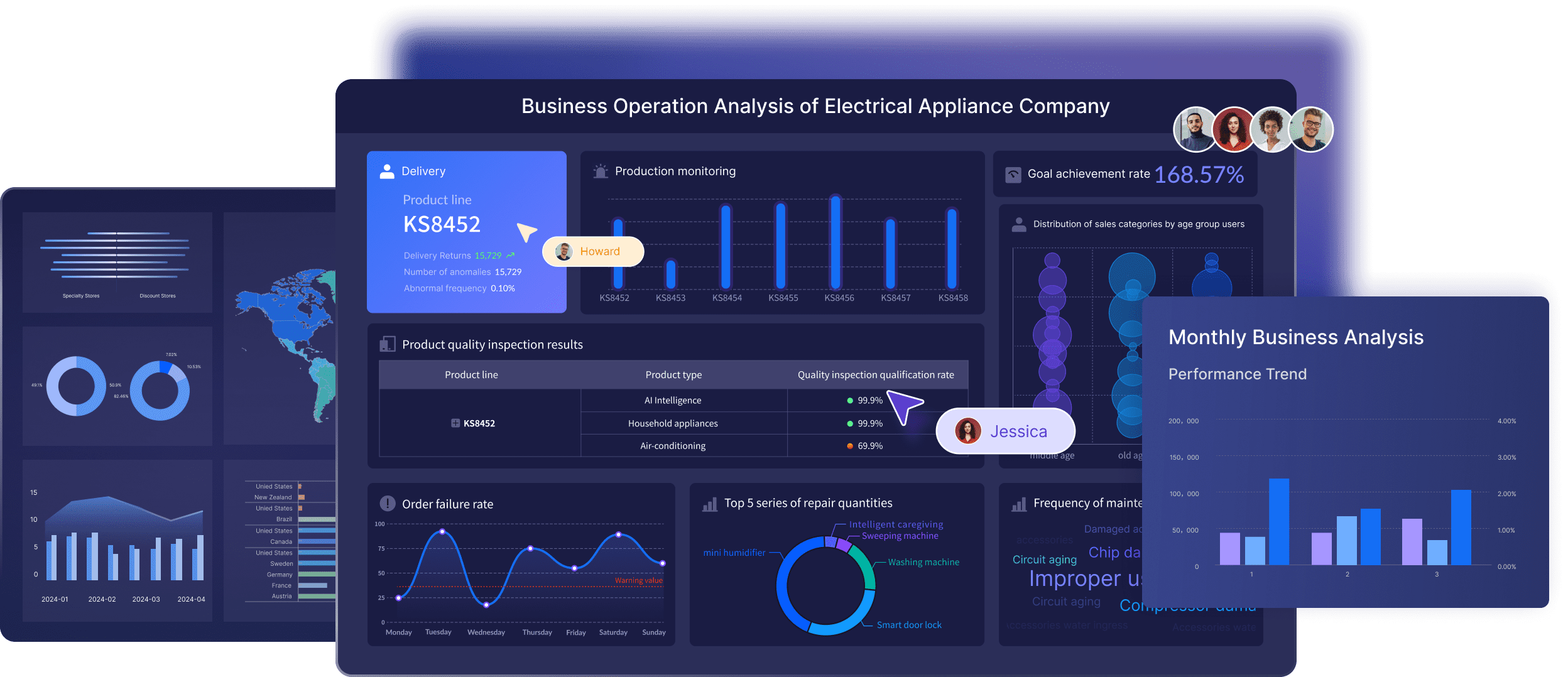
Where FineBI fits in API-driven analytics workflows
FineBI is designed around self-service BI, interactive analysis, and dashboard creation for business teams as well as analysts. In API-related reporting scenarios, that can matter in a few ways:
- Teams can connect and prepare enterprise data for broader business use
- Business users can explore metrics with drag-and-drop analysis instead of relying only on technical report developers
- Interactive dashboards, filtering, and drill-down help turn imported API data into usable decisions
- Shared dashboards make it easier to distribute operational views across departments
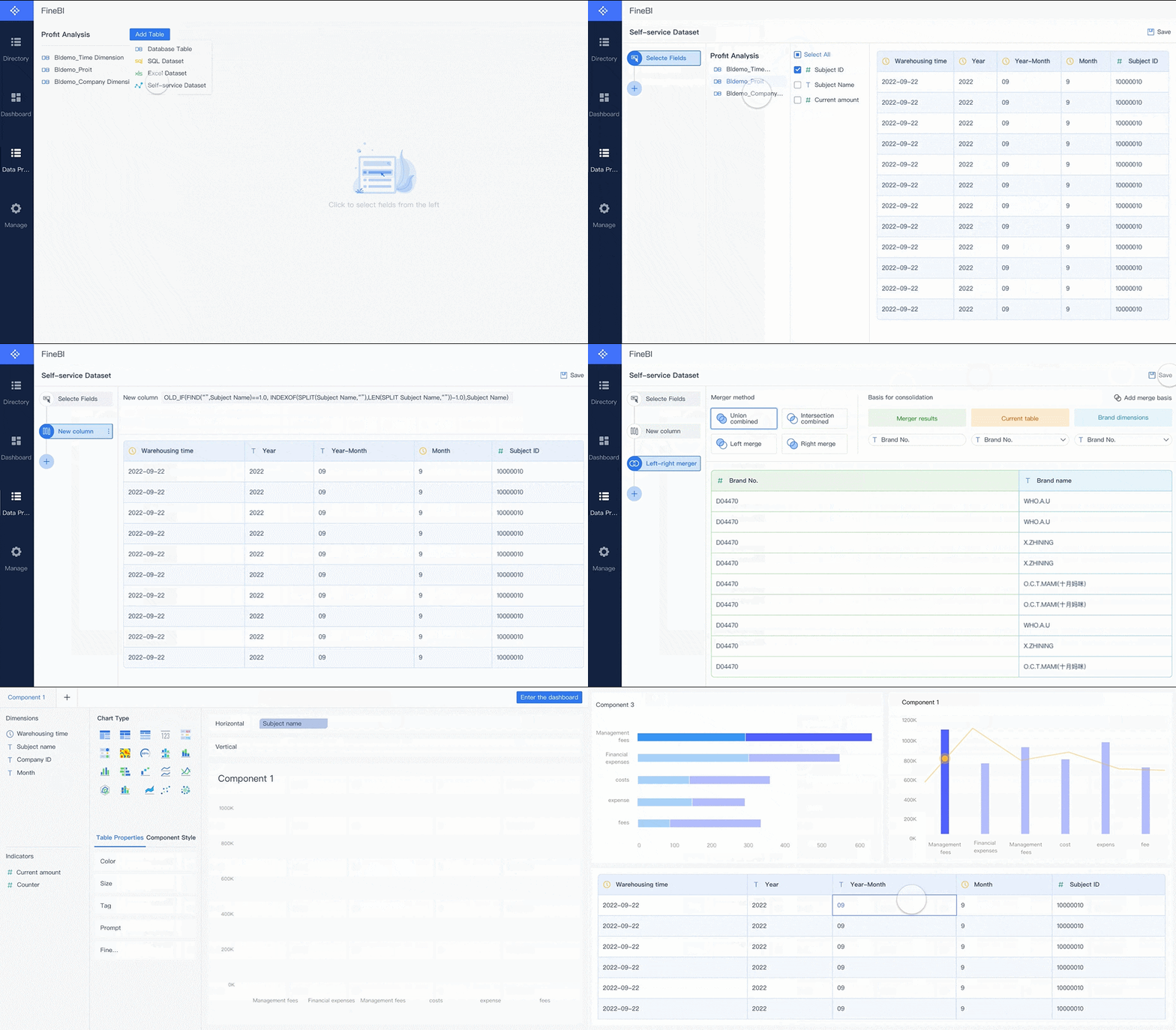 Drag-and-drop Analysis
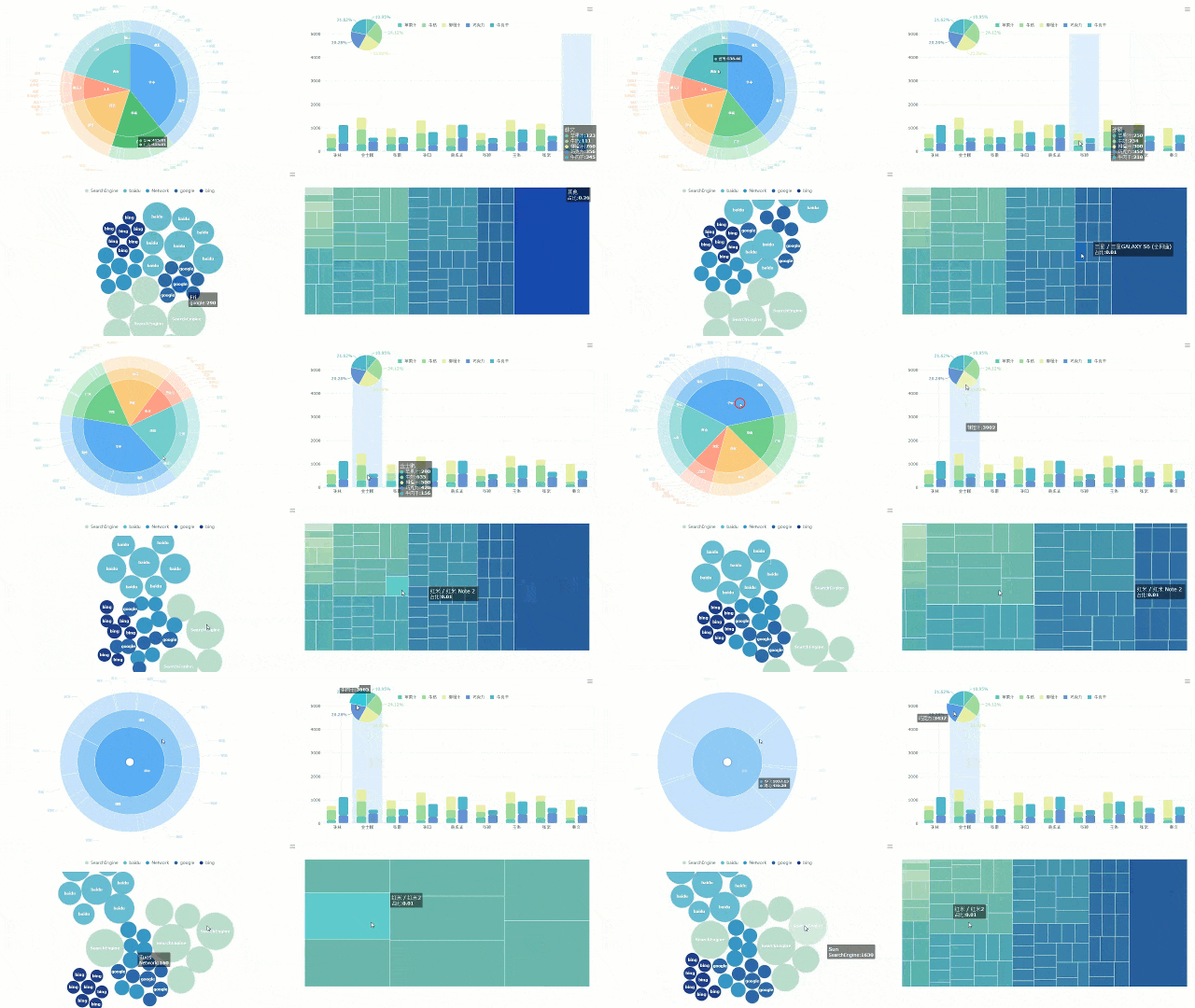 FineBI's Visual Charts
For example, if a company is using APIs to pull CRM, marketing, or financial platform data into a BI environment, the next challenge is often not the API call itself. It is making the resulting data model practical for managers, operators, and non-technical stakeholders.
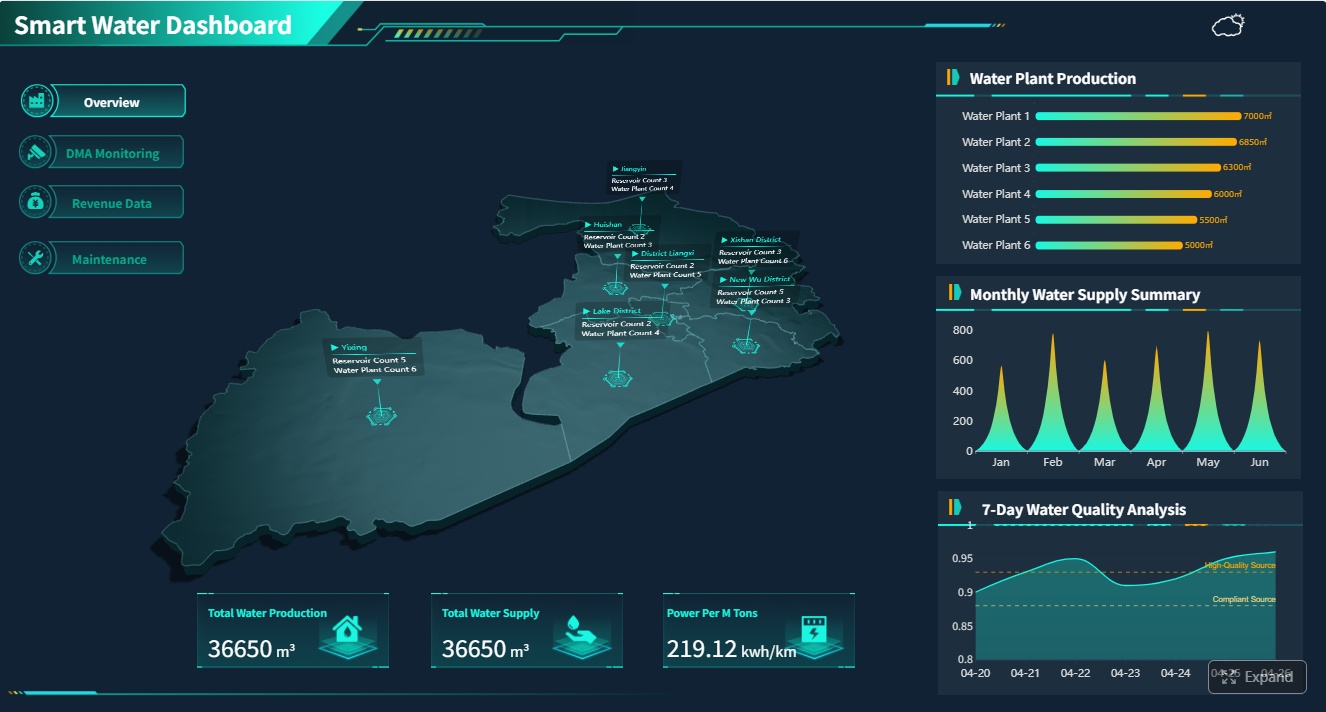
How Dora extends the value of trusted BI data
Dora is FanRuan’s enterprise Data Agent platform. It is best understood as an AI assistant or AI digital employee layer built on top of FineBI and trusted enterprise data assets.
This matters for API-heavy reporting environments because many teams move from one problem to another:
- First, they struggle to connect data
- Then they struggle to turn it into dashboards
- Then they struggle to help users ask better questions and act faster
That is where FineBI + Dora becomes a useful model.
- FineBI builds the trusted dashboard, metric, and semantic foundation
- Dora turns that foundation into a scenario-specific Agentic BI workflow
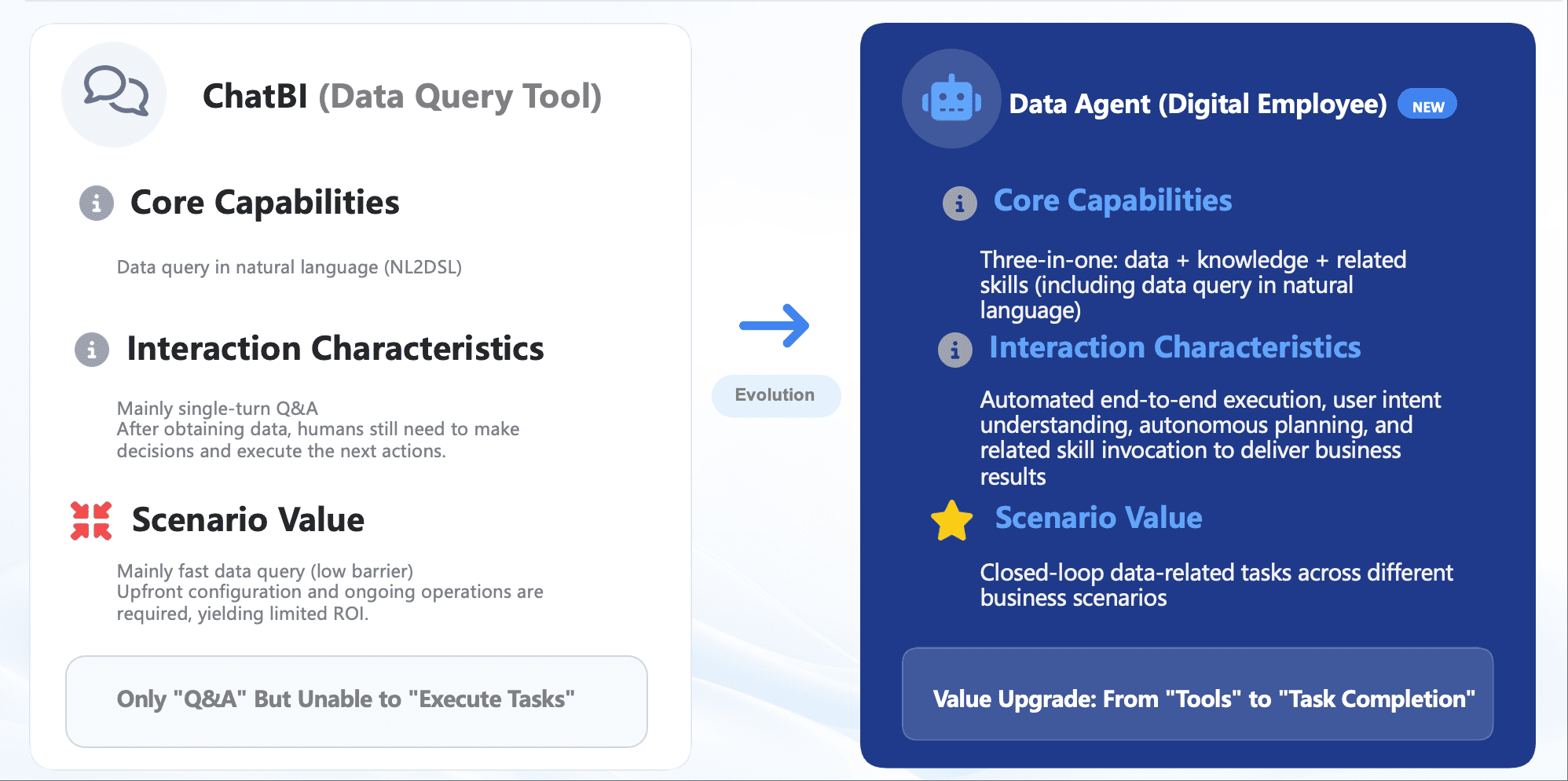
Instead of positioning Dora as a generic chatbot, it is more accurate to describe it as an enterprise Data Agent that can support governed AI workflows such as:
- Natural-language business requests
- Trusted metric interpretation through a semantic layer
- Governed query or skill execution
- Answers, summaries, charts, actions, and follow-up workflows
Depending on the use case, organizations may apply Dora in roles such as:
- Data Analyst digital employee
- Report Researcher
- Daily Briefing Secretary
- Risk Alert Officer
In the context of API-driven BI, this can help teams move beyond “data is available in a dashboard” to “AI helps users ask, analyze, generate, push, alert, and follow up” on trusted data.
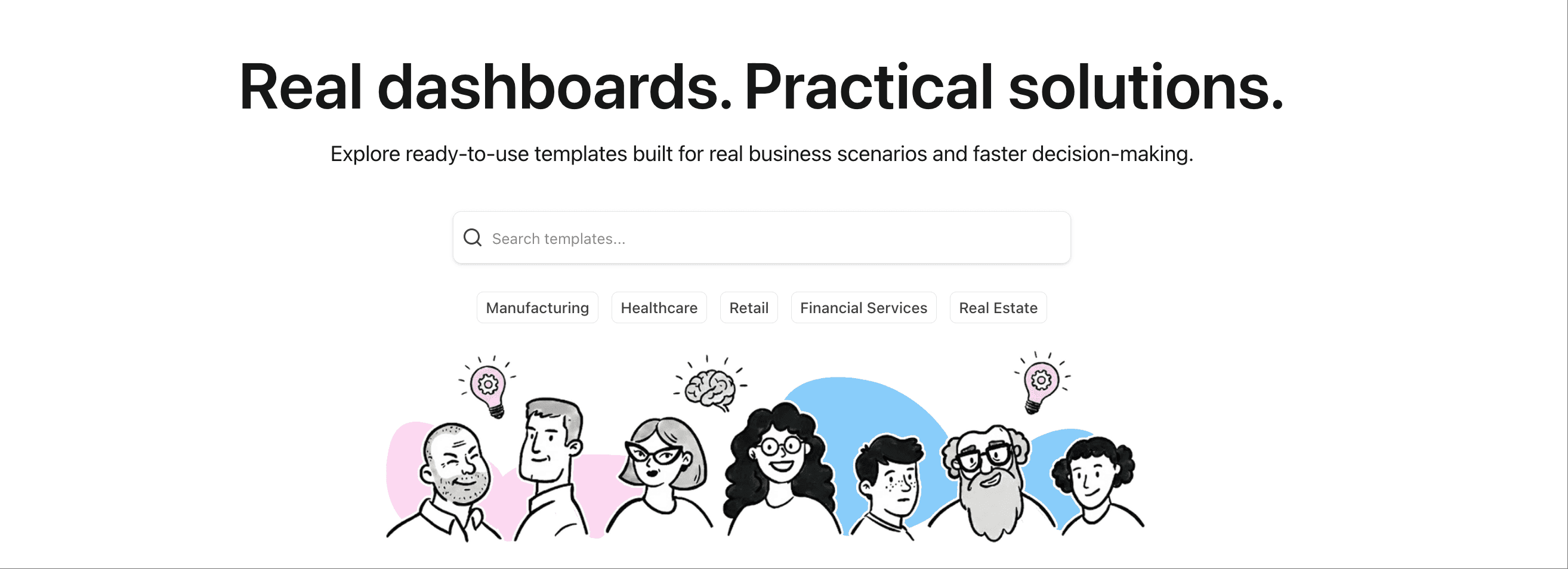
Get Ready-to-Use Dashboard Templates in Fine Gallery
Final thoughts
For beginners, the most important thing to understand about the Power BI API is that the term covers two different paths:
- The Power BI REST API for managing and automating the Power BI platform
- Web APIs in Power Query for bringing external application data into reports
Once you separate those two ideas, the learning path becomes much clearer.
If your goal is automation, governance, embedding, or platform operations, start with the Power BI REST API. If your goal is reporting on SaaS or operational data, start with Power Query and external web APIs.
And if your larger challenge is not just data connection but also self-service analytics, dashboard usability, and governed AI assistance for business teams, FineBI + Dora is worth evaluating as part of a broader BI strategy.
FAQs
The Power BI REST API is for managing Power BI resources like datasets, reports, and workspaces. A web API in Power Query is for importing data from external systems into your Power BI model.