If you need a reliable expense report template Google Sheets setup, the goal is not just to log receipts. It is to create a repeatable system that helps employees submit expenses faster, helps managers review them with less back-and-forth, and helps finance teams reimburse accurately. For operations leaders, finance managers, and admin teams, a poorly structured sheet creates the same problems every month: inconsistent categories, broken formulas, missing receipts, and approval delays. A well-built Google Sheets expense report solves those issues with standard fields, validation rules, automated totals, and a layout that is easy to audit.
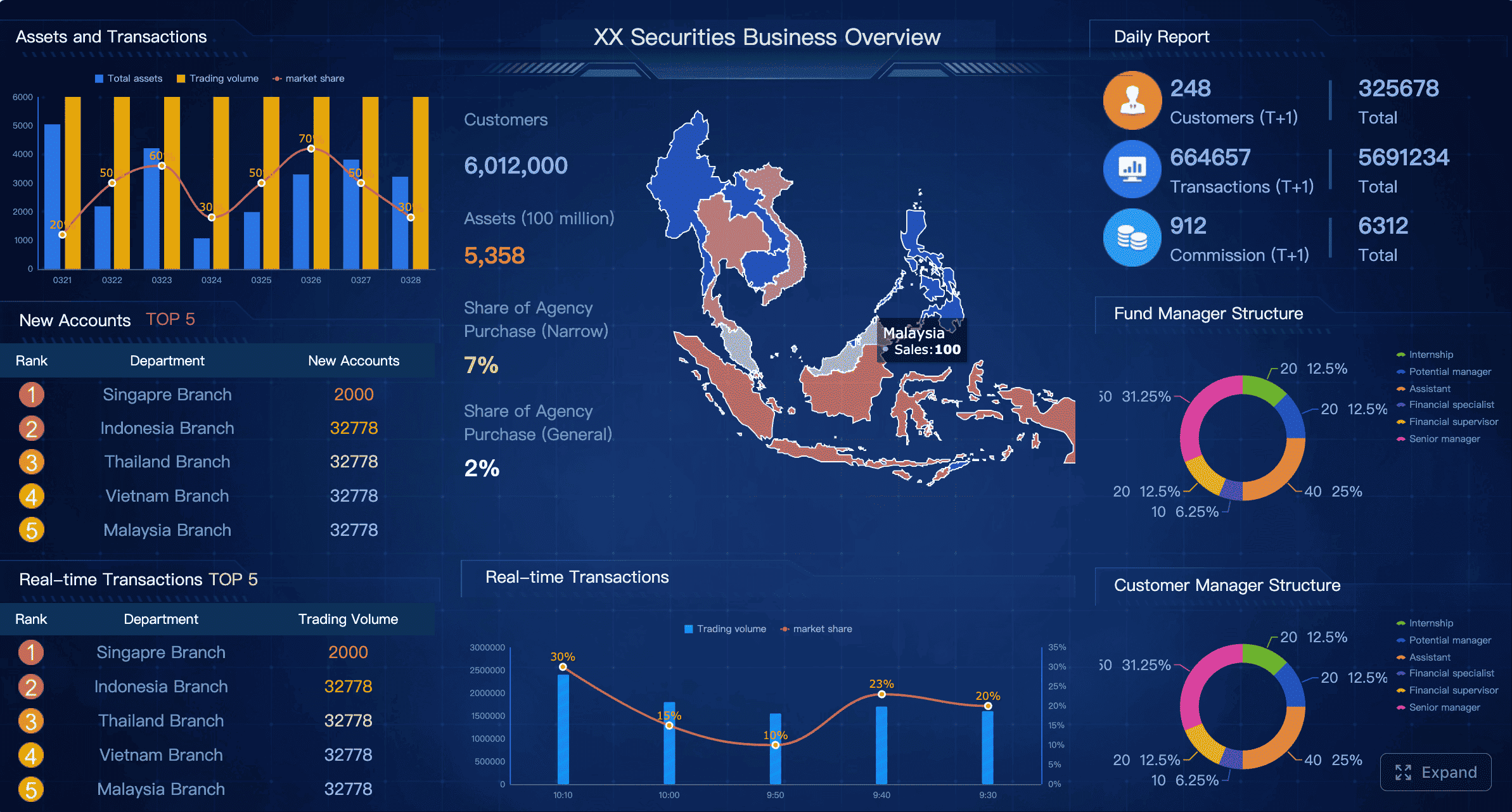
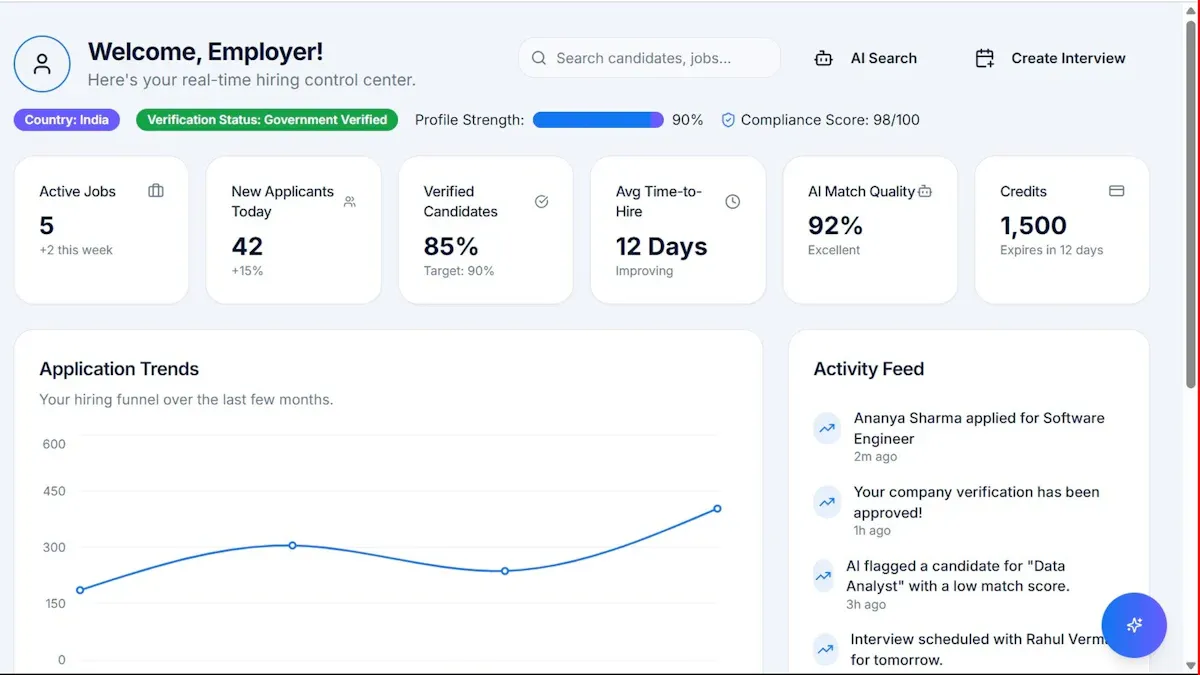
All reports in this article are built with FineReport.
What an expense report template in Google Sheets should include
A practical expense report template should capture complete transaction details, support reimbursement calculations, and make approvals easier. If your sheet only lists expenses in basic rows, it may work for personal tracking, but it will not support a reliable business workflow.
If multiple people will use the file, you want the second option.
When to build your own template instead of downloading a premade file
Building your own template makes sense when:
Your reimbursement policy has custom rules
You need company-specific categories
You want approval fields built into the sheet
Your finance team needs a certain format for export or review
You plan to connect the sheet to a broader reporting process
If your process is more complex or growing across teams, many companies eventually move from manual spreadsheets to a reporting platform like FineReport to centralize expense dashboards, approvals, and analysis across departments.
The core framework: key metrics and elements for an expense report template Google Sheets
Before building the sheet, define the reporting logic. This reduces rework later and ensures your template supports both employee use and management review.
Key Metrics (KPIs)
Total Expenses: The sum of all submitted expense amounts in the report period
Total Tax: The combined tax portion across all entries
Reimbursable Expenses: Expenses eligible for employee repayment
Non-Reimbursable Expenses: Costs logged for visibility but excluded from repayment
Cash Advance Deduction: Any advance already issued to the employee
Final Reimbursement Amount: Reimbursable total minus advances and company-paid charges
Missing Receipt Count: Number of rows where receipt status is missing or marked not received
Out-of-Policy Items: Expenses that exceed limits or use invalid categories
Category Spend Breakdown: Total spend grouped by travel, meals, lodging, software, supplies, and other categories
Approval Status: Pending, approved, rejected, or reimbursed
Submission Turnaround Time: Time between expense date and report submission
Approval Turnaround Time: Time between submission and manager approval
Core elements your sheet should contain
Header section for employee and report details
Expense entry table for daily or per-transaction records
Reference tab for categories and drop-down options
Summary block with totals and reimbursement output
Conditional formatting to flag missing data
Protected formula cells to prevent accidental edits
Print-ready layout for export and sign-off
Step 1: Set up the basic expense report template Google Sheets layout
Start with a clean structure. Most spreadsheet issues come from trying to fix layout problems after formulas and formatting are already in place.
Create the header and reporting details section
At the top of your sheet, reserve a block for report identity and employee information. Include:
Company name
Employee name
Department
Manager
Report period start
Report period end
Submission date
Approval date
Reimbursement status
A practical layout is to use merged cells for the report title and then a two-column form underneath for employee details.
Consultant tip: keep this section compact. Approvers should understand who submitted the report, for what period, and whether it is approved within a few seconds.
Add the main expense entry table
Under the header, create the transaction table. Recommended columns:
Column
Purpose
Date
Expense date
Description
Short explanation of the purchase
Vendor
Merchant or payee
Category
Expense type
Receipt Status
Yes, No, Pending
Payment Type
Personal card, company card, cash
Tax
Tax portion
Reimbursable
Yes or No
Amount
Total spent
Notes
Extra context
Keep labels short and clear. Wide, wordy headers make the sheet harder to scan.
A good rule is this: if an employee cannot understand a column without instructions, rename it.
Step 2: Add categories, drop-down lists, and validation rules of your expense report template Google Sheets
Once the basic structure is ready, the next job is standardization. This is what keeps your reporting usable over time.
Build a category list for consistent expense tracking
Create a second tab called Lists or Reference. Store your approved expense categories there, such as:
Travel
Meals
Lodging
Mileage
Office Supplies
Software
Training
Entertainment
Client Meeting
Miscellaneous
You can also create separate lists for:
Payment methods
Receipt status
Reimbursement status
Approval status
Using a reference tab keeps the main sheet cleaner and makes future updates easier.
Use data validation to reduce errors
Apply Google Sheets data validation to the relevant columns:
Category: Drop-down from the category list
Payment method: Drop-down from approved payment types
Receipt status: Yes, No, Pending
Reimbursable: Yes or No
Date: Date-only validation
Amount and tax: Number or currency-only validation
This reduces typing errors and keeps formulas from breaking due to inconsistent values.
Best practice: use warning messages or reject invalid input entirely for high-risk fields like date, amount, and category.
Step 3: Add formulas to automate totals and reimbursement calculations in your expense report template Google Sheets
Manual totals are one of the most common causes of expense reporting mistakes. Automate as much as possible.
Calculate line-item totals and report totals
If your sheet uses one row per expense, your core calculations are straightforward.
Useful formulas may include:
Grand total of all expenses =SUM(I2:I1000)
Total tax =SUM(G2:G1000)
Total reimbursable expenses =SUMIF(H2:H1000,"Yes",I2:I1000)
Category total for travel =SUMIF(D2:D1000,"Travel",I2:I1000)
Count of missing receipts =COUNTIF(E2:E1000,"No")
You can also add subtotals for reimbursable and non-reimbursable expenses so finance can separate them quickly.
Build a summary section that updates automatically
Add a summary area near the top or right side of the sheet with:
Total expenses
Total tax
Reimbursable total
Non-reimbursable total
Cash advance
Company-paid expenses
Final reimbursement due
Missing receipts count
A simple reimbursement formula could be:
Final Reimbursement = Reimbursable Total - Cash Advance - Company-Paid Expenses
Use conditional formatting to highlight:
Missing receipts
Blank required fields
Out-of-policy categories
Amounts above an internal threshold
For teams that need more than static formulas, FineReport is useful because it turns expense data into dynamic dashboards, approval views, and multi-department reporting without forcing finance teams to manage dozens of spreadsheet versions.
Step 4: Format the expense report template Google Sheets so it is easy to review and submit
A correct sheet that is hard to read still slows down approvals. Formatting is not cosmetic here. It is operational.
Make the template readable for employees and approvers
Use these formatting standards:
Freeze the header row
Freeze key identifier columns if needed
Apply consistent date formatting
Use proper currency formatting
Bold section headers
Shade input cells lightly
Use a different fill color for formula cells
Keep fonts and border styles consistent
Avoid using too many colors. A small visual system works better, for example:
Light yellow for input fields
Light gray for protected or formula cells
Soft green for approved summary results
This makes the file easier to use without overwhelming the viewer.
Prepare the sheet for printing or PDF export
Many companies still want monthly reports as PDFs. Before rollout, adjust:
Page orientation
Margins
Print area
Page breaks
Repeating header rows
Signature lines if required
Approval and reimbursement fields at the bottom
If your process involves manager sign-off, include:
Approved by
Signature
Date
Comments
Step 5: Turn your sheet into a reusable tracker and reporting system
A one-time template is helpful. A reusable system is much better.
Save a master version for repeat use
After you finalize the structure:
Save a clean master copy
Lock formula cells
Protect reference tabs
Add usage instructions on a separate tab
Duplicate the file by month, employee, or team as needed
You can name files using a consistent format such as:
Expense_Report_EmployeeName_2026_01
This makes archiving and retrieval easier later.
Know when to use a tracker template instead of a report template
A tracker template is for ongoing expense capture across time.
A report template is for a closed reimbursement period that gets submitted and approved.
Users often confuse the two, but they serve different purposes:
Free Google Sheets expense tracker templates usually focus on continuous tracking. If your goal is employee reimbursement, you need a report format first.
Step 6: Compare your custom sheet with free template options before finalizing
Before declaring your custom build finished, compare it with free template libraries. This helps you spot missing features and usability gaps.
What free template libraries usually include
Most free expense report templates in Google Sheets include some combination of:
Prebuilt category fields
Basic formulas
Simple reimbursement section
Employee and manager details
Weekly or monthly layout
Receipt field
Signature block
Summary totals
Some templates also include charts or lightweight dashboards, though the quality varies widely.
How to evaluate whether a premade expense report template in Google Sheets is worth using
Use this checklist:
Customization: Can you change categories and reimbursement logic easily?
Formatting quality: Is the layout clean enough for approvers?
Formula integrity: Are totals reliable and transparent?
Permissions: Can you protect cells and share safely?
Update readiness: Will the template stay usable as your process changes?
Workflow fit: Does it support approvals, cash advances, and receipt checks?
Blogs, template galleries, and document libraries often package similar tools under different names. What matters is not the label. It is whether the file matches your internal workflow.
Step 7: Test the expense report template with real entries and improve it over time
Then improve the template with short instructions, notes, or examples.
Consultant advice: if users need repeated training to complete the sheet correctly, the template is too complicated.
Actionable best practices for implementation
If you want this expense report template Google Sheets setup to work across a team, follow these proven practices:
1. Standardize categories before launch
Do not let each department invent its own labels. Define one approved category list and align it with finance reporting needs.
2. Separate input fields from formula fields
Use color coding and cell protection so users know where to type and where not to edit.
3. Build exception alerts into the sheet
Use conditional formatting to highlight missing receipts, high-value expenses, and invalid entries before submission.
4. Test with actual approvers, not just spreadsheet builders
Employees enter data differently than finance teams expect. Managers also review reports differently than creators imagine. Test with both groups.
5. Plan for scale early
If one admin is managing a few reports, Google Sheets works well. If multiple departments need consolidated views, approval tracking, and dashboards, move toward a reporting platform.
FineReport is a strong fit at this stage because it helps teams move beyond isolated sheets into centralized reporting, visual dashboards, and more controlled workflows.
Common mistakes to avoid when building an expense report in Google Sheets
Even a well-intentioned sheet can fail if the design is too loose or too complex.
Mixing personal and business expenses in the same report
This creates reimbursement disputes and weakens audit readiness. Keep business expenses clearly separated.
Using inconsistent categories that make summaries unreliable
If one user selects "Meals" and another types "Food," your totals become fragmented. Always use drop-down lists.
Leaving formulas unprotected or failing to check receipt requirements
A single overwritten formula can invalidate the report. Protect key cells and make receipt status mandatory.
Overcomplicating the sheet when a simple structure would be easier to maintain
Do not add unnecessary tabs, advanced formulas, or visual clutter. The best template is the one people actually use correctly.
Final thoughts
Building your own expense report template Google Sheets file is a smart move when you need control, flexibility, and a workflow that fits your business. Start with the right fields, enforce consistency with data validation, automate totals with formulas, and format the report so employees and approvers can use it without friction.
If your current process is still spread across disconnected spreadsheets, email approvals, and manual reimbursement checks, it may be time to upgrade from a basic template to a more scalable reporting solution. FineReport can help teams build professional expense dashboards, standardized reports, and management-ready analytics with far better visibility than standalone sheets.
Get Ready-to-Use Dashboard Templates in Fine Gallery
A solid template should include employee details, reporting dates, approval status, and an itemized table with fields like date, vendor, category, payment method, amount, tax, and notes. It should also calculate totals, reimbursement amounts, and flag missing receipts.
Start by building a clear header section, then add an expense entry table, a reference tab for dropdown values, and a summary area for totals. After that, apply formulas, data validation, conditional formatting, and protected cells to make the sheet reliable.
The most useful formulas usually include SUM for totals and conditional formulas to separate reimbursable and non-reimbursable expenses. You can also use calculations for tax totals, cash advance deductions, and final reimbursement amounts.
Use dropdown menus for categories and payment methods, keep the layout simple, and protect formula cells from edits. Adding receipt status fields and approval tracking also reduces back-and-forth between employees, managers, and finance teams.
If your team is dealing with frequent errors, approval delays, version control issues, or limited reporting visibility, a spreadsheet may no longer be enough. At that stage, a platform like FineReport can help centralize expense tracking, dashboards, and workflow management.
Product Trial
FineReport
Pixel-perfect reports · Interactive dashboards · Easy data entry · Digital twins